39 free social media strategy templates that will elevate your workflows
Published on August 20, 2026
Reading time 15 minutes
Media library integrations in social schedulers connect your scheduling tool to external asset sources—like cloud storage, content marketing platforms (CMPs) or digital asset management (DAM) systems. This allows social teams to find, import and reuse approved images and videos directly within their compose window and calendar without saving files locally.
In practice, these integrations streamline creative-to-publish handoffs inside social media scheduling tools and reduce time spent switching between apps.
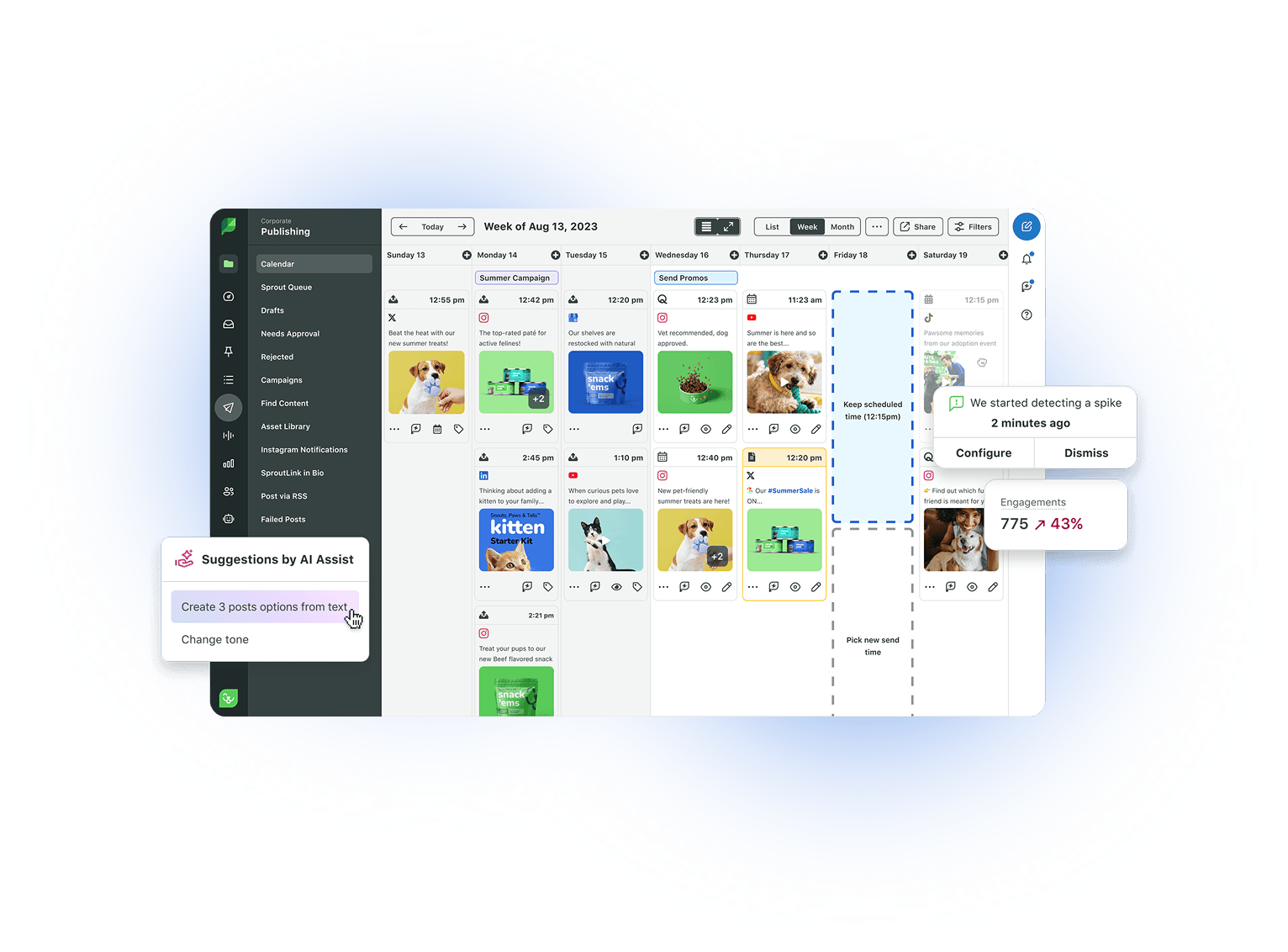
Instead of downloading an image to your desktop and reuploading it to a post, integrations surface your external libraries inside the scheduler’s media picker. From there, you can browse folders, search, preview and attach assets to a post in a few clicks. In Sprout, these capabilities live within social media publishing and the social media calendar, and are powered by platform connections listed in Sprout Social integrations.
Depending on the integration, assets are either imported into your post composer from the source or copied into the scheduler’s library at attachment time. Either way, you avoid local downloads while maintaining access to the most current, approved files.
Ready to eliminate local downloads and streamline your entire publishing workflow?
Try Sprout Social Essentials free for 30-days
If you’re comparing platforms, start with this overview of social media management tools and go deeper into hands-on criteria with our guide to social media posting tools.
What are media library integrations in social media scheduling tools?
They are connections between your scheduler and external asset sources that let you browse, select and attach approved images or videos to posts without saving files locally. See how this works across platforms in Sprout Social integrations.
How is this different from a built-in asset library?
A native library stores files inside the scheduler. Media library integrations keep your source of truth in tools like cloud drives, CMPs or DAM—and bring those assets into the compose workflow on demand.
Which tools can a scheduler connect to?
It varies by platform. In Sprout, examples include Google Drive, Opal, Optimizely and Slate in the Workflow & DAM category, plus a dedicated connection for Dropbox listed in the Integrations directory.
Do media library integrations prevent local downloads entirely?
They’re designed to eliminate the need to download files to your device while creating and scheduling posts. Depending on the tool, attached assets may be copied into the scheduler or referenced from the source during the publishing process.
Are media library integrations the same as DAM integrations?
DAM is one type of media source. Many teams use brand management and DAM platforms to enforce governance, versioning and metadata—then connect them to the scheduler to publish on-brand, up-to-date content.
Tip: Pair robust integrations with intelligent publishing and a shared social media calendar to scale consistent, efficient content operations across channels.
39 free social media strategy templates that will elevate your workflows

Build and grow stronger relationships on social