How to add alt text to social media images fast

Written by Mahnoor Sheikh
Published on November 4, 2026
Reading time 8 minutes
Table of Contents
Social media alt text is easy to skip and expensive to skip as well. Skip it, and you lose the readers who browse with a screen reader. You weaken your content’s chances of surfacing in search. And you fall short of a social media accessibility standard your customers now expect brands to meet.
You don’t have to choose between doing it right and doing it fast. This guide will explain what alt text is, why it matters and how to write it well. We’ll also show you the one-click way to write alt text for social media images at scale.
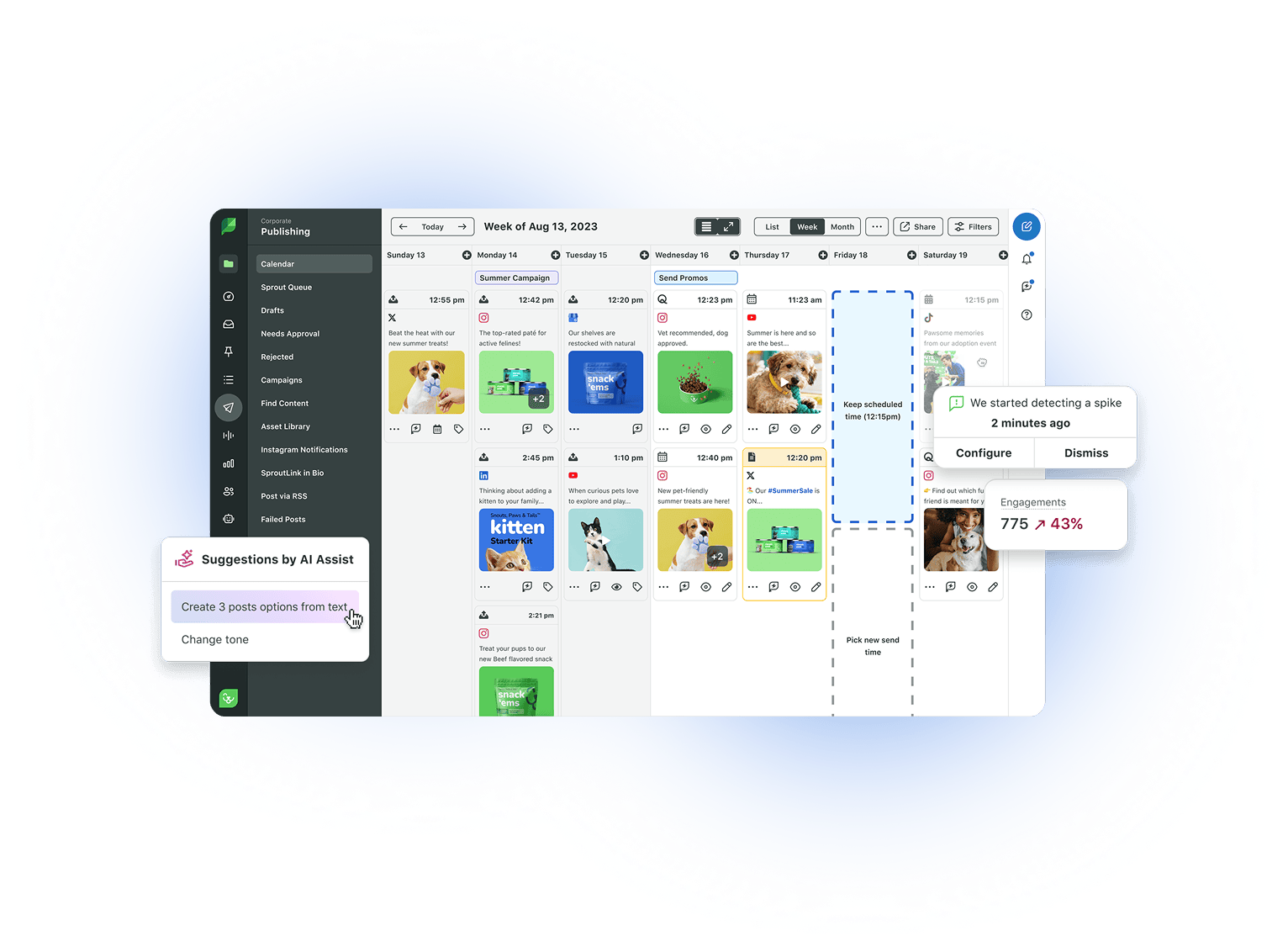
Sprout Social’s Essentials plan lets you quickly add alt text to your social media images. Open the image in Compose, click Add Alt Text, write a description and save. Or Sprout’s AI Assist analyzes your image and drafts alt text in one click for you to review, edit and publish.
What is alt text on social media?
Alt text, short for alternative text, on social media is a written description attached to an image so screen readers can describe it to people who can’t see or load it.
It fills in what a visual would communicate on its own. People with low vision or those browsing with images turned off still understand your complete post.
Alt text is not a post caption. It’s not a place for commentary, image credits, keywords or calls-to-action. Those add noise for people using screen readers. If the text doesn’t describe what’s in the image, it doesn’t belong in the alt text field.
Facebook, Instagram, LinkedIn, X, Threads and Pinterest all support native alt text fields. Type alt text on each app as you post, or add it across multiple networks in one pass using a publishing platform like Sprout Social.
Why does alt text matter for social media marketers?
Alt text puts your message in front of more people, including those who can’t see the visuals. Adding alt text also makes accessibility a regular part of your publishing routine, which builds credibility and strengthens your brand image.
Does alt text improve accessibility?
Yes. Accessibility is the primary purpose of alt text.
The World Health Organization estimates that 1.3 billion people live with a significant disability. Many use screen readers to turn content into speech or braille. Alt text gives them the information, humor, emotion and context your visual carries.
Alt text also supports people on slow connections or who turn images off to save data. When an image doesn’t load, its description still tells what you shared.
Can alt text help with social media SEO?
Alt text supports social media SEO when it includes words that accurately describe the image and matter to your audience. When it’s written to please an algorithm, it fails the accessibility test and rarely boosts your ranking.
For example, “Three ceramic planters on a white shelf” includes “ceramic planters,” a term your audience may already search. It also gives social platforms more context to surface your content than:
- “Our latest collection” (too generic)
- “Best ceramic planters pots sale free shipping” (irrelevant keyword stuffing)
Describe the image accurately, and include the terms that belong there anyway. Discoverability follows.
Is alt text required by policy?
Alt text may be required by your organization’s accessibility policy or applicable laws, depending on your industry, location and audience. Check which requirements apply to your brand.
Even when it’s not mandatory, people expect accessible content from brands. Major social networks also offer tools and accessibility guidance to help.
Adding alt text alone doesn’t guarantee legal compliance. Add it to your publishing checklist alongside captions, transcripts, strong color contrast and clear link text.
What are alt text best practices for social media images?
Good alt text gives people enough detail to understand the image without a long description. Here’s how to keep yours useful:
- Keep it short but descriptive. Aim for 125 characters as a common guideline. Go longer when the image needs extra explanation.
- Skip “image of” or “picture of.” Screen readers already announce that an image is present. Start with the description and save your readers the redundancy.
- Weave in keywords naturally. Include relevant terms only when they describe what’s in the image. Skip search phrases that add nothing to the description.
- Add context around your visual. When it makes sense, explain why the image is paired with the post. For example, “A line graph showing customer response time falling from six hours to two” is more useful than “A blue line graph.”
- Leave out hidden messages, credits and calls to action. These distract from the description. Put them in your caption, where everyone can access them.
How long can alt text be on each network?
HTML doesn’t set a character limit for alt text, but social networks and publishing tools do. For example, X allows up to 1,000 characters while Pinterest allows 500. LinkedIn’s publishing API allows up to 4,086 characters but recommends staying under 120.
If you’re publishing through Sprout Social, the following limits apply:
| Network | Character limit |
| X, Facebook, Instagram, LinkedIn | Up to 1,000 |
| Up to 500 |
You don’t need to use all that space. We suggest around 125 characters as a general guideline. Go longer when readers need more detail to understand the image.
How do you add alt text to social media images manually?
Add alt text to your social media images from the same Sprout Compose window you use to draft the rest of your content.
First, log in to your Sprout Social account. New to Sprout? Sign up here and connect your social profiles. Then follow the steps below:
- Go to Compose and select the profile(s) you’re publishing to.
- Attach an image to your post.
- Click the pencil icon on the image.
- Click Add Alt Text.
- Write your description within the network’s character limit.
- Click Save.
An alt text indicator will appear on the image in both Compose and your Publishing Calendar.
Manually adding alt text works. But writing every description from scratch, one image and one post at a time, is where the hours begin to add up.
Why is manual alt text a time drain for growing brands?
Manual alt text takes time because every social media image needs an accurate and relevant description. As your publishing calendar grows, so does the work of writing, checking and adding those descriptions.
If you post images daily across four or five networks, you have dozens of alt text fields to fill each week. Carousels multiply the work, since each image needs its own description.
The work is worth doing. The hours are not. Every minute you spend typing descriptions is time you can’t spend on strategic campaign planning and community management.
How many hours a week is alt text costing you?
Let’s say you publish 10 image posts across five platforms a week. That’s 50 alt text descriptions. If each one takes two minutes to write and check, you spend up to 1 hour and 40 minutes each week on alt text. That’s more than six hours a month. Add carousels or graphics with embedded text to the mix, and the number climbs even higher.
Your exact figure will depend on your content volume and workflow. The more useful question to ask is: how much faster could this be if AI gave you the first draft?
How can you generate alt text automatically?
Generate alt text in Sprout Social while creating a post using Generate by AI Assist. Here’s how the feature works and what to check before you publish.
What is Generate by AI Assist in Sprout Social?
Generate by AI Assist is Sprout’s built-in alt text generator. It uses an OpenAI integration to analyze your uploaded image and draft a description for it in one click. Use the alt text as-is, regenerate it for a different option or make your own tweaks before saving.
AI-generated alt text is included in every Sprout Social plan, including Sprout Social Essentials.
How do you generate alt text with AI Assist?
To generate alt text with Sprout’s AI Assist, your account owner first needs to enable the OpenAI integration under Settings > Global Features > AI Settings.
Once that’s set up, generate your descriptions in 5 steps:
- In Compose, select your profile(s) and add your image.
- Click the Add Alt Text link below the image.
- Click Generate in the alt text popup on the right.
- Click Use Text to add the generated text, or retry for another option.
- Review and edit if needed, then click Save.
Is AI-generated alt text accurate enough to publish as-is?
Treat AI-generated alt text as a strong first draft, not a finished one. You should always review it before publishing.
AI can misread words in an image or leave out important details or context. For example, AI might describe a chart’s colors without explaining the trend your post is highlighting. Your review makes sure the description communicates what your audience needs to know.
You make the final call, but you stop writing every description from scratch. With AI handling the first draft, you can spend that time saved creating great content and engaging with your audience.
Note: When you generate alt text in Sprout, the image is shared with OpenAI. Your account owner can disable the integration in Sprout’s AI settings if you prefer not to share images.
Sprout Social Essentials includes AI-generated alt text for your social media images. Try it free for 30 days.
How much time can AI Assist save on alt text?
If you post one image daily across five networks, using AI Assist to generate alt text can save up to 30 minutes every week compared to writing alt text manually, which is around 2.1 hours a month and nearly 25 hours a year.
Let’s compare the two workflows side by side to illustrate the time spent for one image on one network:
| Step | Manual | With AI Assist |
| Open the alt text field | ~10 seconds | ~10 seconds |
| Study the image, decide what matters | ~20 seconds | Handled by the model |
| Produce the description | ~60 seconds of writing | ~5 seconds to generate |
| Review and adjust the wording | ~0-10 seconds | ~20 seconds |
| Check the length and save | ~10 seconds | ~5 seconds |
| Total per description | ~110 seconds | ~40 seconds |
Now apply that to 25 alt text fields a week: one image a day across five networks, five days a week:
| Manual | With AI Assist | |
| Per week | ~46 min | ~17 min |
| Per month | ~3.3 hours | ~1.2 hours |
Reviewing a strong AI-generated draft takes less time than producing alt text from scratch. Multiply that gap every image you publish.
How do you turn on AI Assist for alt text in Sprout Social?
You can turn on AI Assist for alt text in Sprout Social in four steps:
- Sign in as the account owner and open Settings.
- Go to Global Features.
- Select AI Settings.
- Enable OpenAI Integration.
Once it’s enabled, the Generate icon appears in the alt text box in Compose.
Ready to stop writing alt text one image at a time?
Make your visual content more accessible without adding hours of manual writing to your week. Sprout Social Essentials includes AI-generated alt text, so you can start with a draft, review and edit it in seconds, and get back to strategy and publishing.
Start your free 30-day Essentials trial.
FAQs about social media alt text
What's the alt text character limit on Instagram, Facebook, LinkedIn, X and Pinterest?
Sprout Social supports up to 1,000 characters of alt text for Facebook, Instagram, X and LinkedIn. For Pinterest, you can add up to 500 characters. Aim for roughly 125 characters in practice unless the image needs more explanation.
Does alt text help SEO?
Alt text can support discoverability by giving platforms accurate information about an image. While its primary purpose is to improve accessibility, using relevant keywords to naturally describe your visual content can also indirectly help SEO.
Can you add alt text to Instagram Stories?
No. Instagram currently does not support alt text on Stories. In Sprout, you can generate alt text for Instagram image and carousel posts.
Is AI-generated alt text shared with anyone outside Sprout?
Clicking Generate shares the image with OpenAI, which powers the feature. You can turn the OpenAI integration off under Settings > Global Features > AI Settings if you’d prefer to keep images in-house and write descriptions manually.
What's the difference between alt text and an image caption?
A caption is a visible post copy written for your whole audience. It can tell a story, express your brand’s voice, provide context and encourage action. Alt text is a description attached to the image itself, read aloud by screen readers and shown when images don’t load.
39 free social media strategy templates that will elevate your workflows
Published on August 20, 2026 Reading time 15 minutes







Share