Canva for small business Instagram: Create a feed that builds trust

Written by Mahnoor Sheikh
Published on August 4, 2026
Reading time 4 minutes

Table of Contents
Summary
- No designer required: a cohesive Instagram feed comes down to a repeatable design system (brand kit, color palette, grid template) applied consistently post after post, not a big production budget.
- Proof in the feed: Lucy & Yak and Go-To Skincare show it in action: a consistent palette, UGC and text graphics turn a small brand's grid into something instantly recognizable and trustworthy.
- The workflow that makes it stick: Sprout's Canva integration cuts out the download-upload cycle, letting you design in Canva, import straight into Compose (or push from Canva as a draft), then edit and schedule in one place.
You don’t need an in-house designer or a stack of separate apps to build an intentional Instagram feed. You need a consistent visual system and a workflow that doesn’t waste your time rebuilding the same steps for every post.
That system is carrying more weight than it used to. Product discovery has shifted decisively toward visual platforms: well over half of it, more than 60%, now happens on TikTok, Instagram and YouTube, where audiences gravitate toward authentic, human content rather than polished brand campaigns. Your Instagram feed isn’t just a moodboard anymore, it’s doing real discovery and purchase-decision work before anyone reaches your website.
That’s also why the two brands below lean so hard into their communities instead of studio production. Sprout’s own 2026 research found that consumers rank human-generated content as their top priority from brands on social and it lines up with our 2025 Content Benchmarks Report, which found user-generated content is what consumers say is most engaging on their feeds.
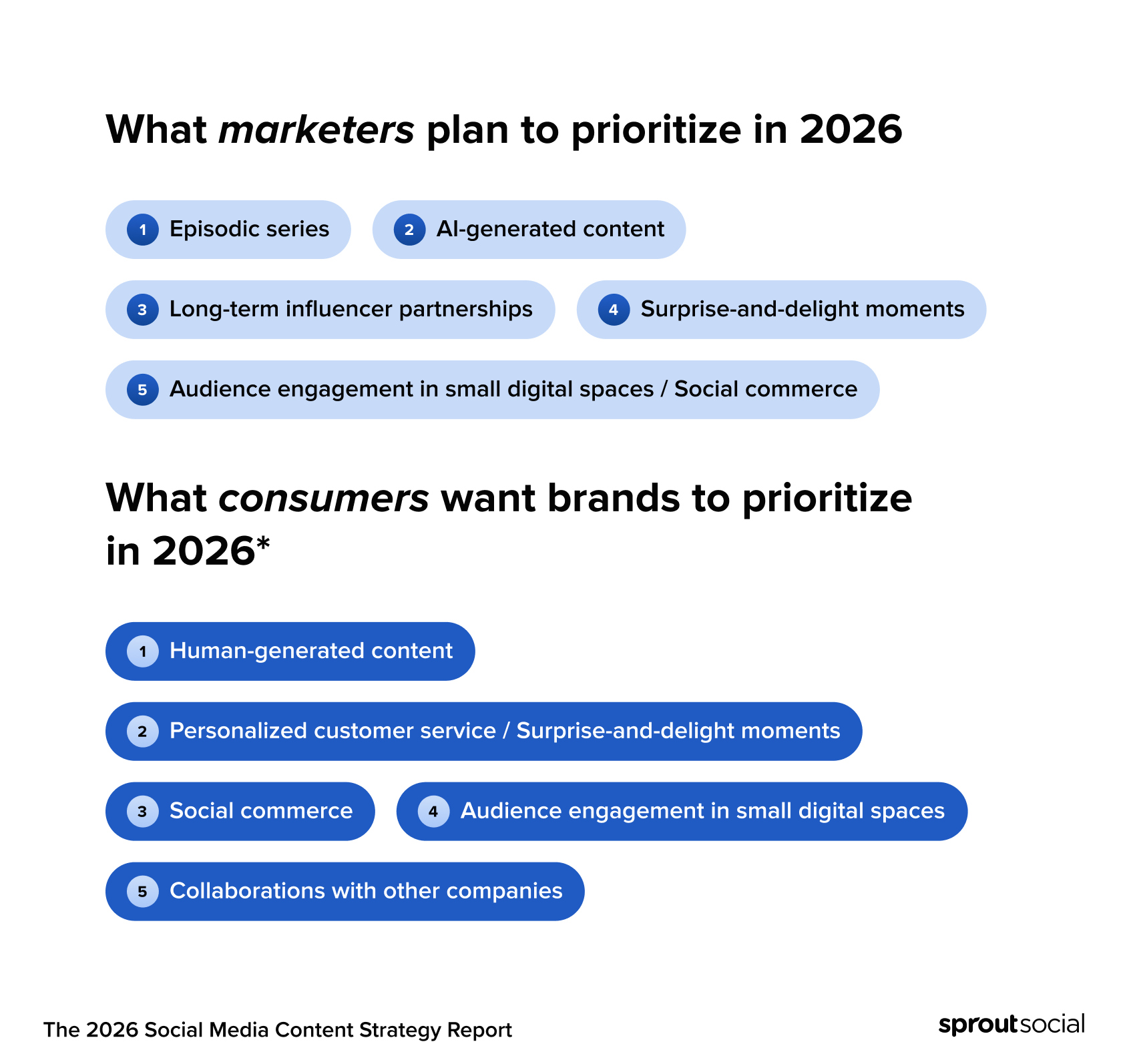
Lucy & Yak and Go-To Skincare aren’t choosing UGC because it’s cheap. They’re choosing it because it’s what actually works. We’ll look at how Lucy & Yak and Go-To Skincare built recognizable, on-brand feeds without a big production budget—then walk through how to do it yourself using Sprout’s Canva integration, available on Sprout Social Essentials and up.
How small teams keep their Instagram feed on-brand
Lucy & Yak (UK, apparel)
Lucy & Yak’s grid is bright, inclusive and fun—just like the brand. Bold colors and playful prints show up throughout the feed, which feels more like a community than a catalog.
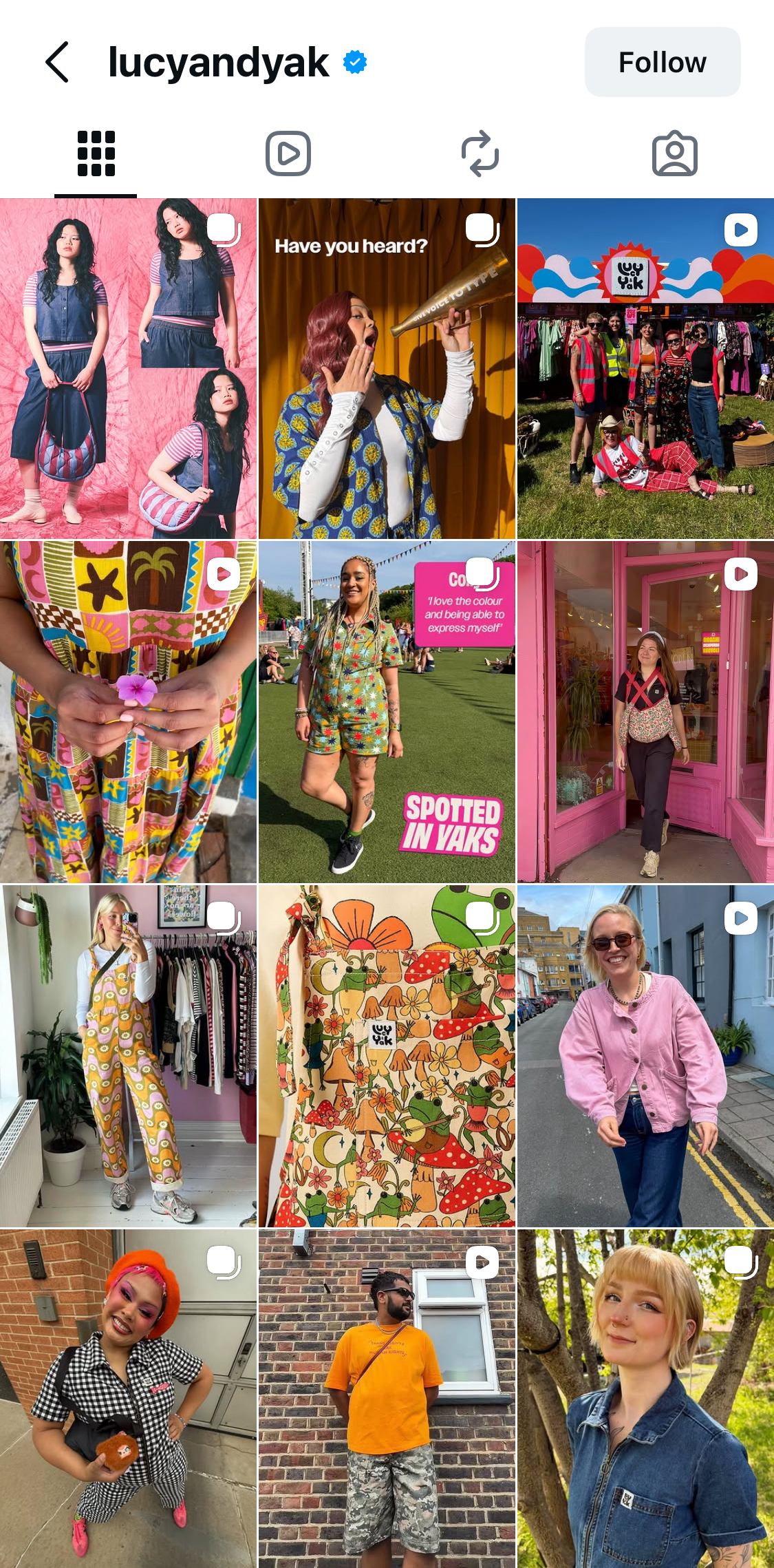
What they do well:
- A vibrant palette that is recognizable and captures the brand’s energy
- Heavy use of user-generated and diverse community content to build belonging
- A deliberate mix of product, people and print shots, so no two rows feel repetitive
Go-To Skincare (Australia, beauty)
Go-To keeps everything in warm, peachy tones, so the feed hangs together even when the content type changes. They mix user-generated content with text graphics, running the same color thread through both to blend the human side of the brand with useful information.
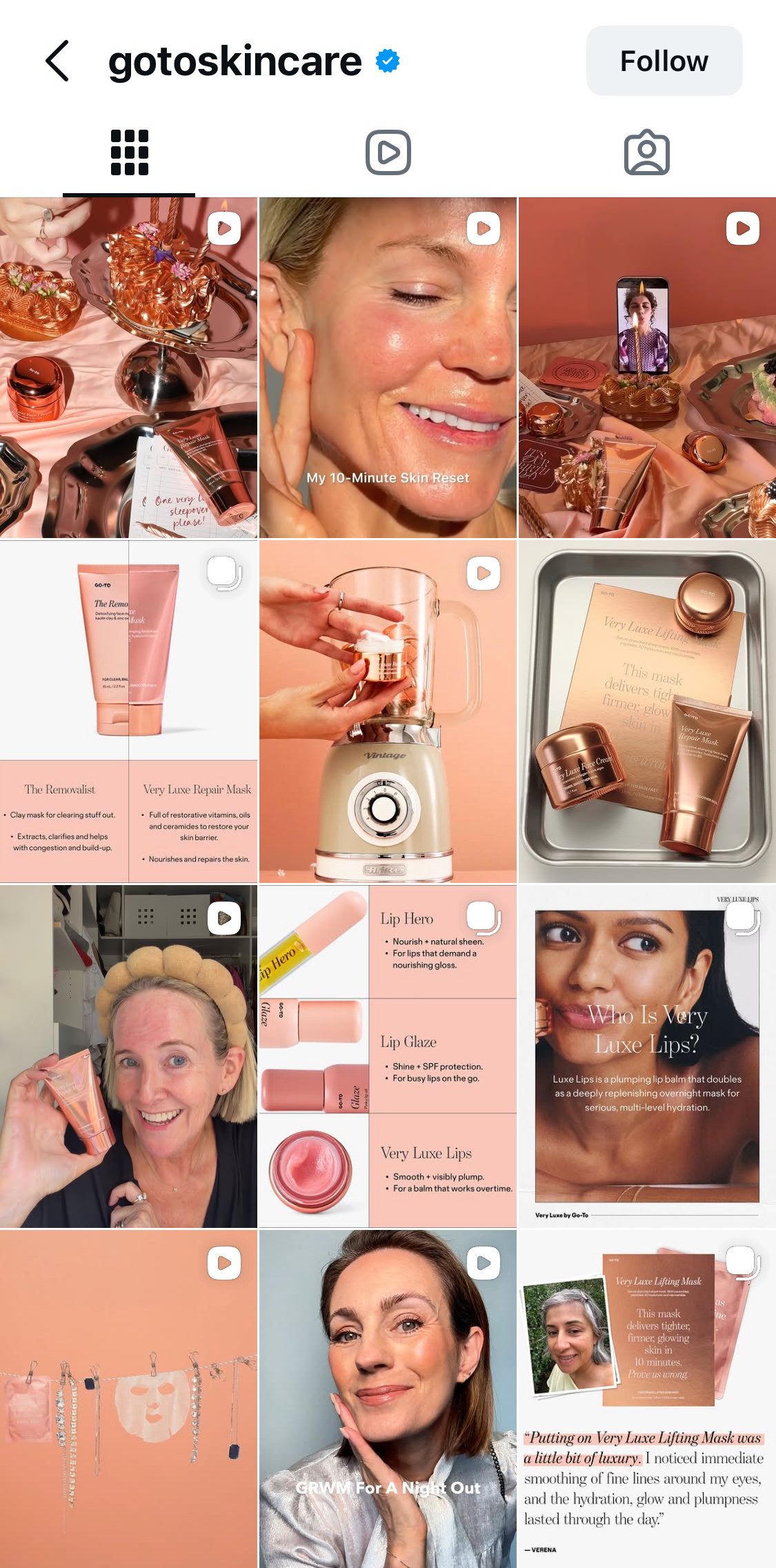
What they do well:
- A consistent color palette that connects every post at a glance
- UGC and close-up shots that show the product being used in real life
- Educational text graphics that add value without breaking from the brand look
Neither of these feeds needs a production studio. They need a repeatable design system, a template, a color palette, a brand kit, applied consistently, post after post.
That’s what Canva is built for, and what Sprout’s integration accelerates.
How to use Sprout’s Canva integration
Most lean teams already design in Canva. It’s free, quick and easy but design is only one part of publishing. Without a connected workflow, you have to download each file, upload it to your scheduling tool and start over for edits. Sprout’s Canva integration cuts that out.
Step 1: Connect Canva to Sprout
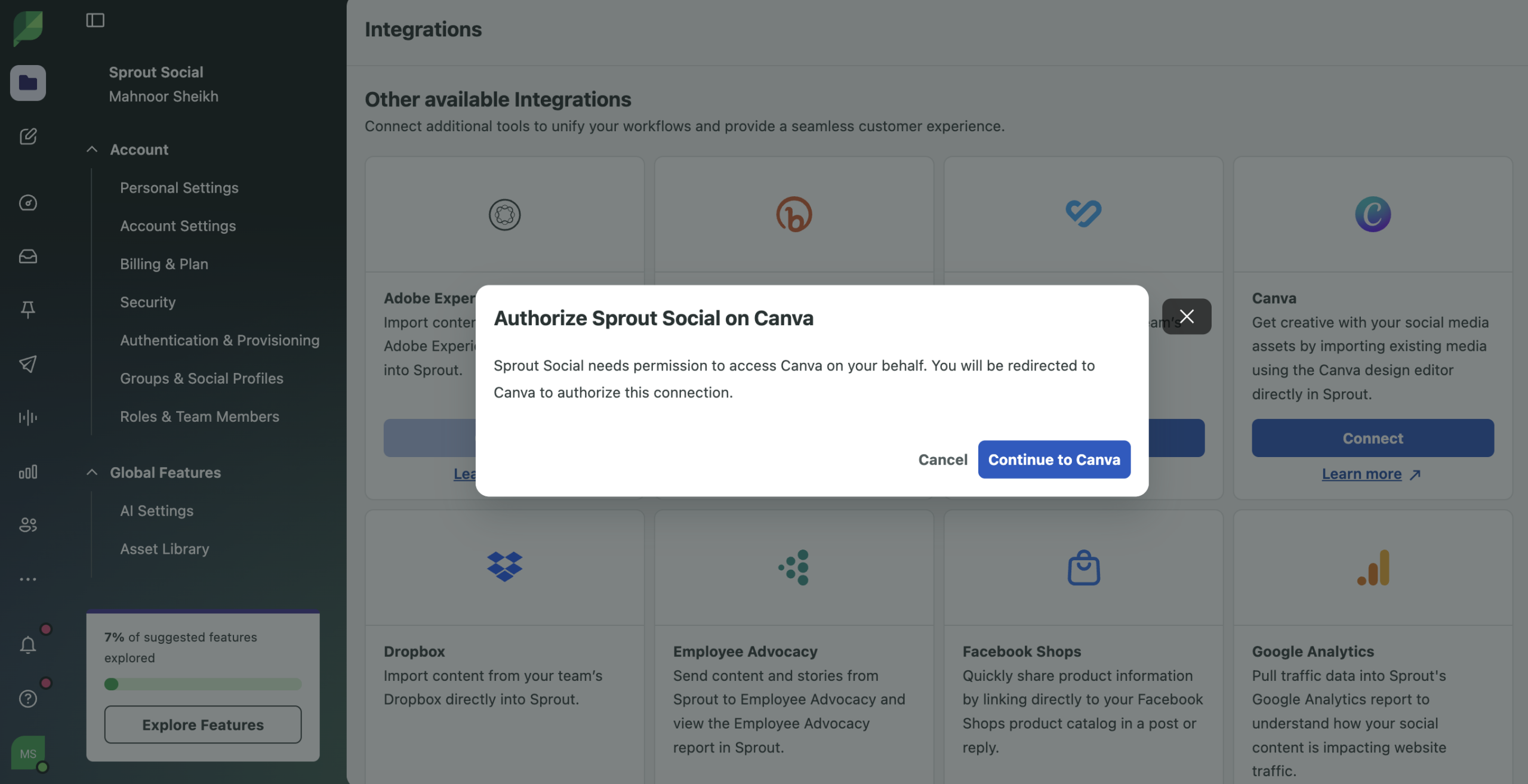
Log in to Sprout Social and head to your integration settings. Click Connect next to Canva, then follow the prompts to authorize the connection.
Note: this is a per-user integration, so each person on your team connects their own account.
Step 2: Design your assets in Canva
Open Canva and design your batch of posts. A few tips for a cohesive feed:
- Apply your saved brand kit to pull in fonts, logos and colors
- Use a 3×3 grid template to design your next nine posts as one connected layout, not nine isolated squares
- Alternate between product photos and text graphics so the feed doesn’t feel repetitive
Whatever layout you land on, stick with it—consistency over time is what builds the cohesive look.
Step 3: Import instantly into Compose
Back in Sprout, open the visual composer to create a new Instagram post. Click the image icon, then choose Canva as your source. Browse your designs, search for a specific file, and select what you want, Sprout imports it directly into your post. No exporting, no re-uploading.
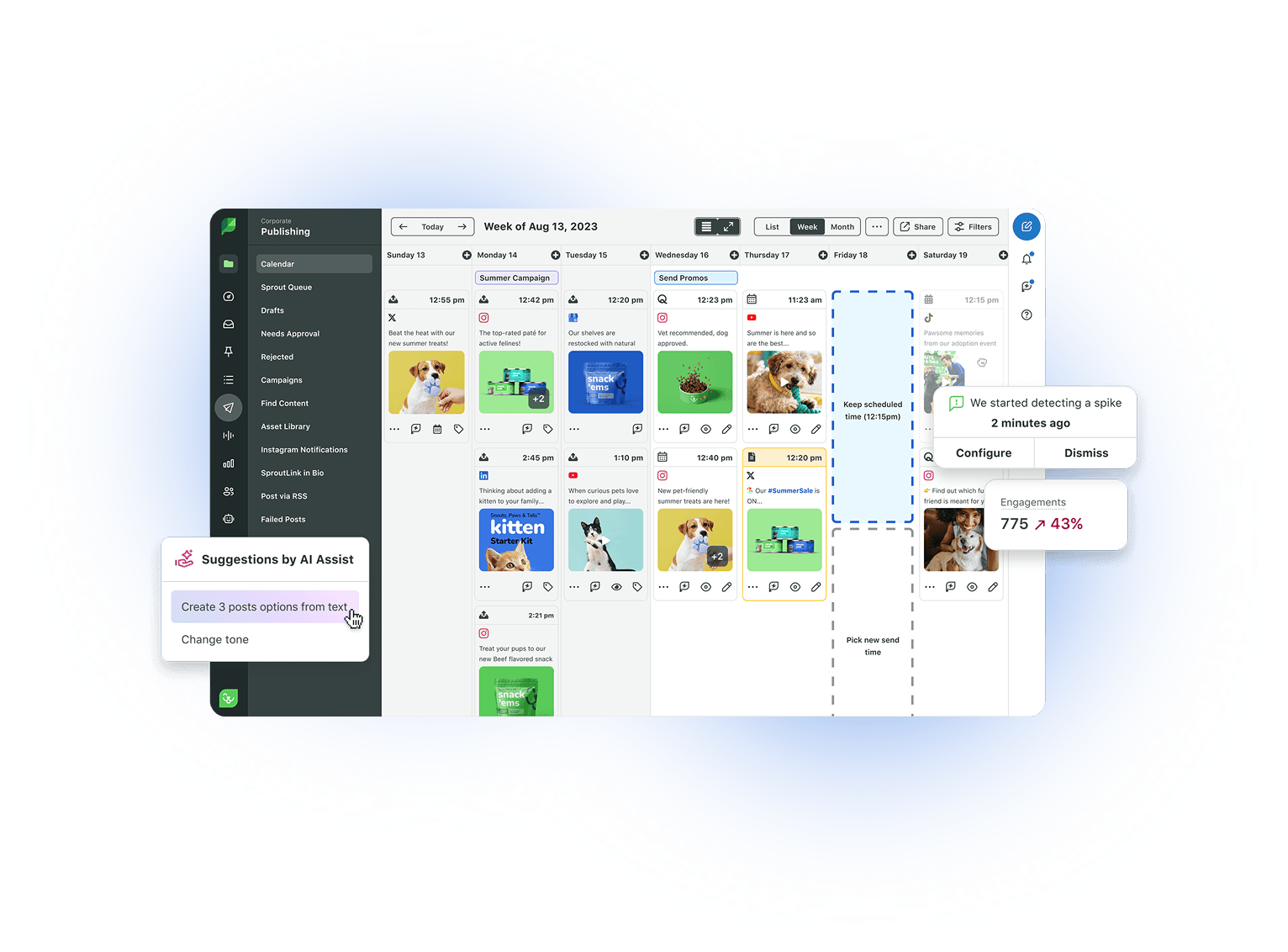
Prefer to start in Canva? Design as usual, then open the Sprout Social app from Canva’s App Library. Pick the profile you’re posting to, add your caption, choose a publish time and send it straight to Sprout as a draft. It lands on your publishing calendar, ready for final edits and scheduling.
Step 4: Polish and schedule
Before you publish, click the pencil icon on any thumbnail to open Sprout’s built-in image editor—crop, resize or retouch right in the Compose window. When it looks right, schedule it.
Why this beats the download-upload cycle
Without a connected workflow, planning content usually looks like this: design a post in Canva → download it → send it to your phone → upload it somewhere to check it → notice something’s off → go back to Canva and start over. For a small team without hours to spare, that loop adds up fast.
Sprout’s Canva integration helps you:
- Save time. Cut out repetitive downloads, uploads and file transfers.
- Keep your brand consistent. Your brand kit travels with every design, every time.
- Simplify your stack. Design, edit and schedule from two connected tools instead of three or four disconnected ones.
Ready for the next level?
As your posting volume grows, so does the value of seeing your whole grid at once—not just the next post. Sprout’s Instagram Grid Planner, available on the Professional plan and up, lets you preview exactly how a new design sits next to your last 90 days of posts before you hit schedule.
Start designing faster
Building a brand that looks good and converts shouldn’t mean juggling three different apps. With Sprout Social Essentials, your Canva designs and your publishing calendar live in the same place.
39 free social media strategy templates that will elevate your workflows
Published on August 20, 2026 Reading time 15 minutes







Share