47 Instagram hacks every marketer needs to know

Written by Chloe West
Published on July 22, 2026
Reading time 15 minutes

Table of Contents
Instagram hacks are the strategic shortcuts, platform features and algorithmic techniques that help you maximize reach and drive engagement with less effort. Mastering Instagram in 2026 means knowing every tool the platform gives you and using each one with intention.
These Instagram hacks cover everything from crafting a bio that converts to writing captions that drive real engagement. Each one is designed to help you grow your Instagram following and build an audience that sticks around.
We’ve organized these Instagram hacks by category so you can go straight to what you need and start applying it immediately. Whether you’re refining your Instagram strategy or filling in the gaps, this is your comprehensive playbook.
General Instagram hacks for account management
1. Get post notifications from your favorite accounts
Turn on post notifications for specific accounts to receive alerts the moment they publish new content. You’ll never miss posts from accounts that inspire your strategy.
Head to the Instagram profile you want to follow closely. Tap the bell icon in the top right corner, then choose which content types trigger notifications: new posts, Stories, Reels, videos or live videos.
2. Save your favorite posts
Instagram’s Collections feature lets you bookmark posts from your feed, the Explore page or any profile. Tap the bookmark icon beneath a photo to save it.
Organize saved posts into themed Collections by going to your profile, tapping the hamburger menu and selecting Saved. Group images by campaign theme, competitor research or content inspiration for faster retrieval later.

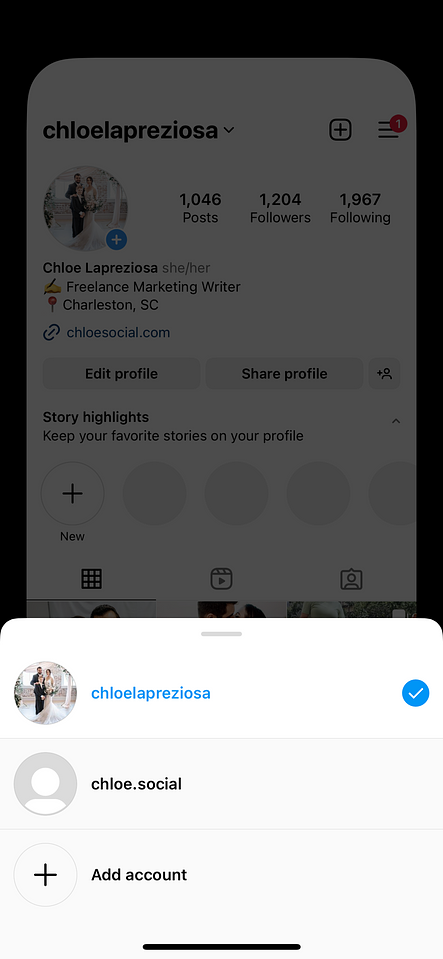
3. Manage multiple accounts from one device
Instagram lets you manage up to five accounts from a single device—a critical capability for social media managers juggling brand profiles.
Go to your profile, tap the hamburger menu and select Settings and privacy. Scroll to the bottom and tap Add account to log in to another profile. Switch between accounts by tapping the dropdown next to your username or by holding down the profile tab in the bottom right corner.
Instagram bio and profile hacks
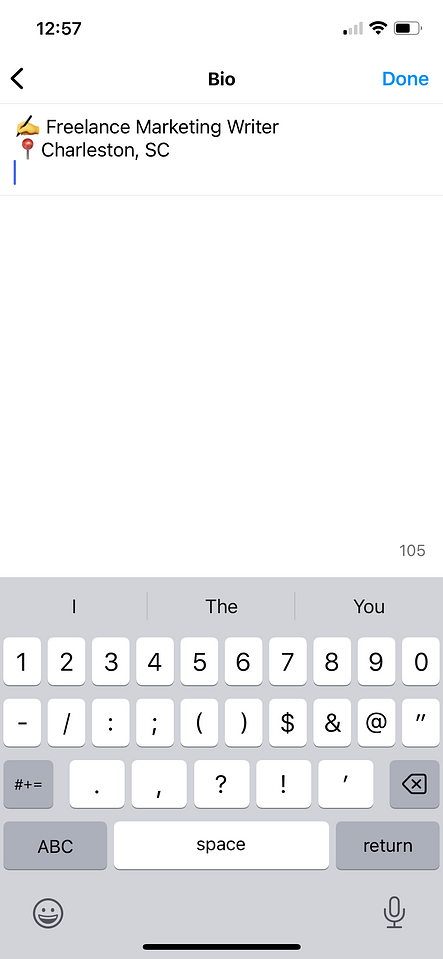
4. Add line breaks to your bio
Use separate lines to explain what your brand does in your Instagram bio. You can’t access line breaks from the regular ABC keyboard. Tap the 123 button in the bottom right corner to access the Return key and add breaks that make your bio easier to scan.
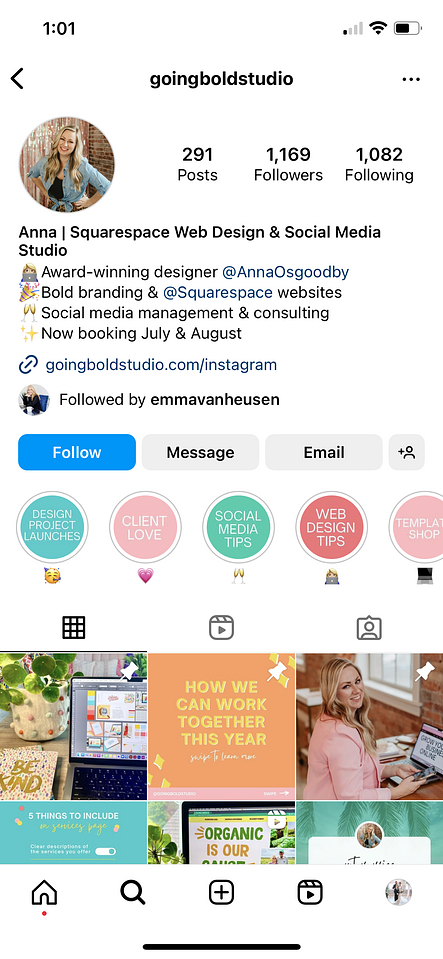
5. Tag other profiles in your bio
Tagged profiles in your bio become clickable links. Use this to promote your other brand accounts or tag sister companies from your main profile.
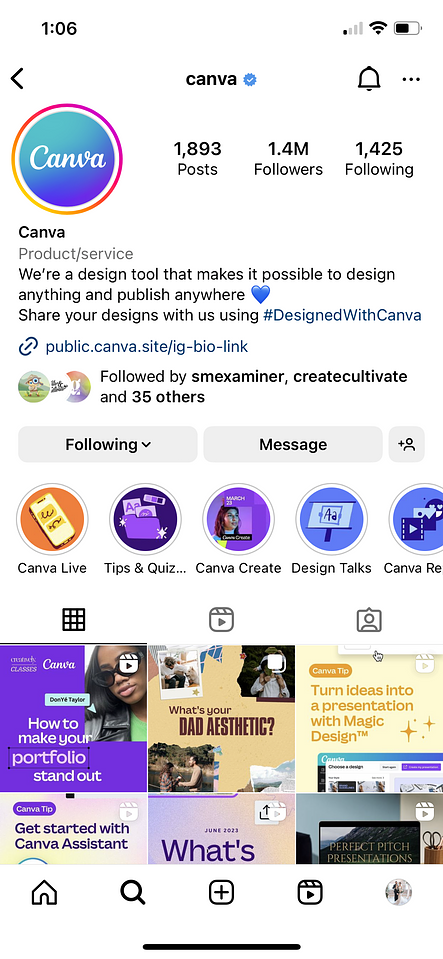
6. Include hashtags in your bio
Your bio supports clickable hashtags, making it a prime spot to promote branded hashtags you use for user-generated content campaigns.
7. Change your bio’s alignment
Center or right-align your bio to stand out from the default left-aligned crowd. Copy the spaces between the arrows (not the arrows themselves): >>⠀⠀⠀⠀⠀⠀⠀⠀⠀<<. Paste those spaces before each line of your bio, adding or removing spaces until the alignment is right.
8. Include keywords in your profile name
Add strategic industry keywords to your profile name (not your username) to increase discoverability in Instagram search. Because people search by keyword as well as username, a keyword-rich profile name puts your account in front of more relevant audiences. For example, a photographer using “Charleston Wedding Photographer” as their profile name surfaces in searches beyond their brand name alone.
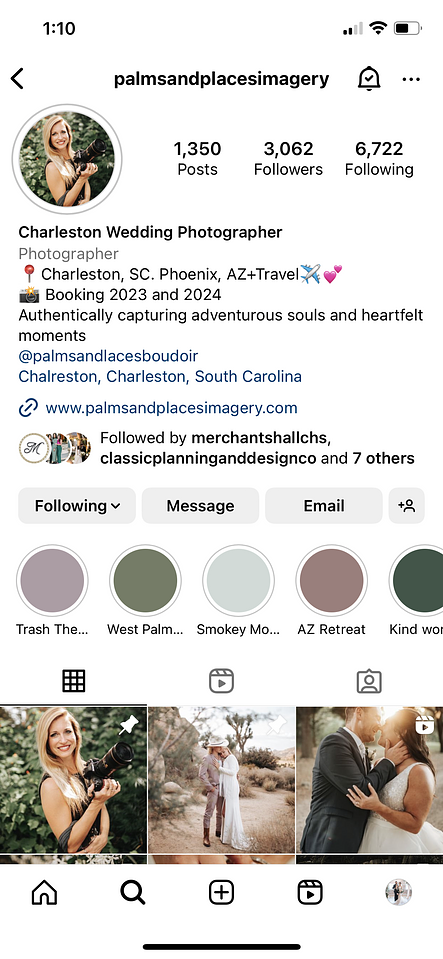
9. Use special fonts and characters
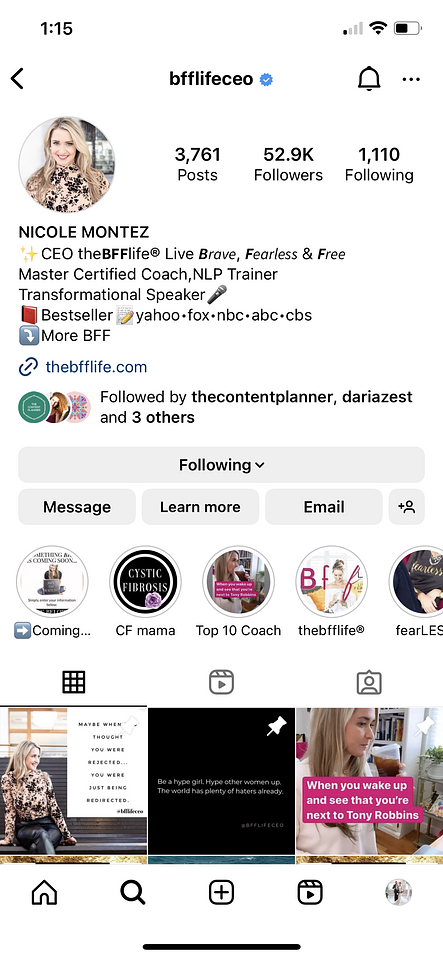
Incorporate custom fonts into your bio using a tool like LingoJam. Type your bio, pick a font and paste it into your profile.
Go beyond standard emojis by pulling special characters from a free app like Character Pad on mobile. Copy symbols from Microsoft Word on desktop.
One critical caveat: special fonts and unicode characters are not screen-reader friendly. Use them sparingly and never as your primary means of communicating key information.
Instagram Stories hacks
10. Change highlight covers without publishing them to your story
You no longer need to publish a new story just to update your highlight cover. Change it from your camera roll in seconds.
Tap and hold the highlight you want to update, then tap Edit highlight on the popup that appears. Tap Edit cover and select the photo you want from your camera roll.
11. Create shapes with text
Instagram Stories offers several fonts you can combine with symbols to build eye-catching visual elements that stop the scroll.
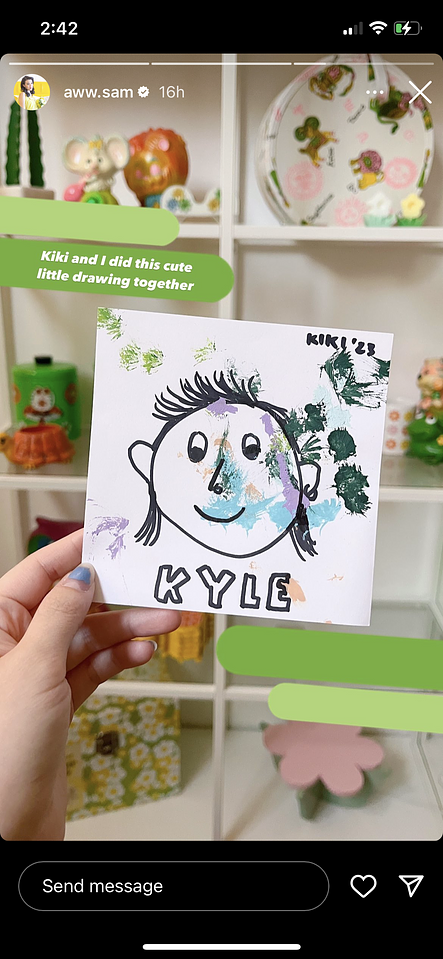
Enlarged em dashes work as decorative backdrops, asterisks become stars or snowflakes and oversized periods create bold dot accents. One caution: screen readers interpret each character individually, so use decorative symbols sparingly to keep your content accessible.
12. Create ombré or rainbow text
Ombré and rainbow text transforms a standard story into a branded visual moment, but it takes practice to nail.
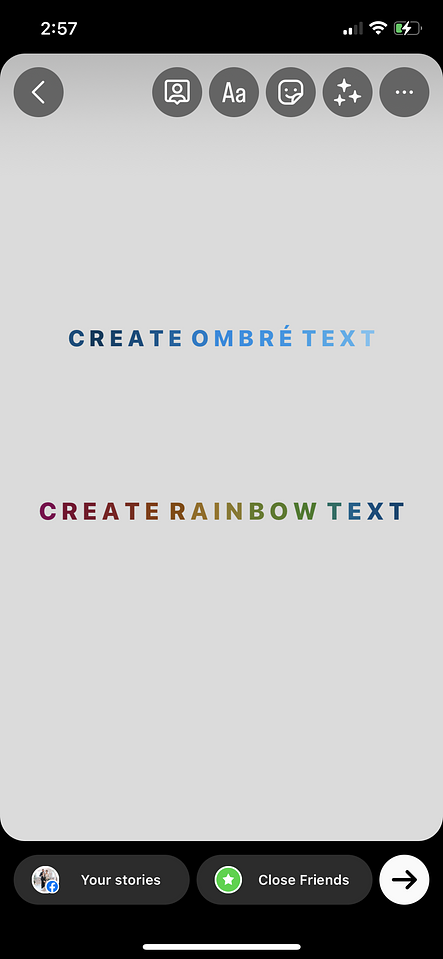
Write your text, select all of it, then use one finger to hold the selected words and another to hold down your starting color. Drag both fingers across the screen at the same time, across the text and across the color spectrum. Move slowly: top to bottom creates an ombré effect, side to side creates a rainbow.
Pro tip: Always hold your text before touching the colors. Reversing this order breaks the effect entirely.
13. Create a solid background
Skip the photo background and build a clean, solid-color canvas for announcements, quotes or sticker-forward stories.
Upload any photo to get started, then open the Draw menu. Find your target color, then tap and hold on the screen. The entire background fills with that color.
14. Hide a story from specific users
Control who sees your stories without switching to a private account.
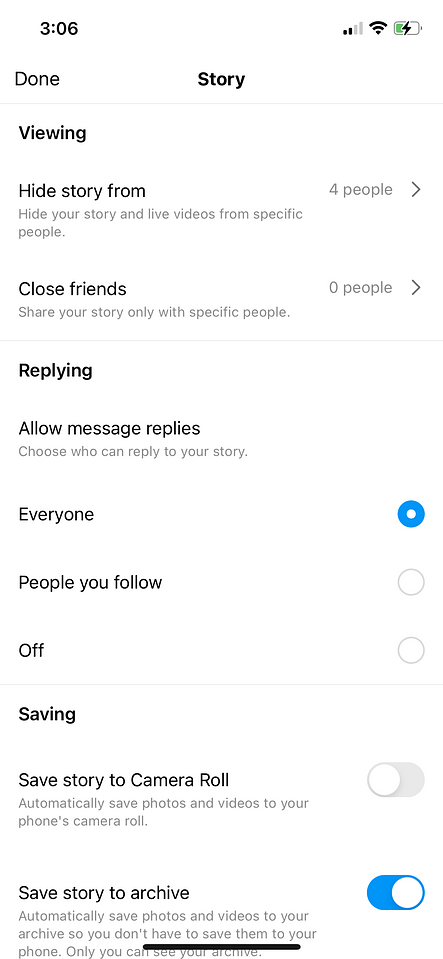
When creating a new story, tap the three dots in the bottom right corner labeled More, then tap Story settings and select Hide story from. Choose the accounts you want to exclude. Once the story expires, you can remove those accounts from the list.
15. Add images from your camera roll
Pull any photo from your camera roll into a story as a full-screen background or layered element on top of existing content.
To add a full-screen photo, swipe up on the story camera and select a photo from your camera roll. To layer a photo on top of existing content, tap the Stickers icon and select the circle with the camera icon.
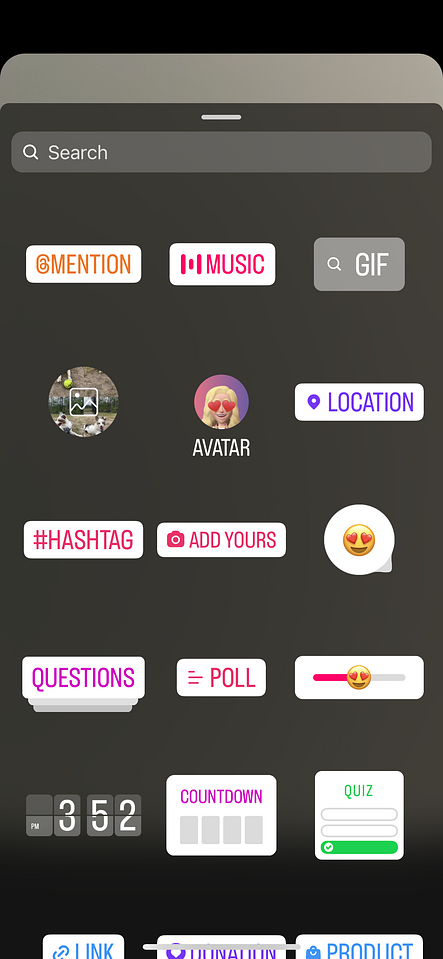
Once added, resize it, reposition it and tap it to cycle through shape options: rectangle, heart, star, circle and square.
16. Add multiple photos in a story
Two methods let you pack multiple images into a single story frame.
Method 1: Sticker layering: Start with a photo or solid background (see hack #13). Head to the Stickers menu and tap the camera roll option. Repeat to add as many images as you need.
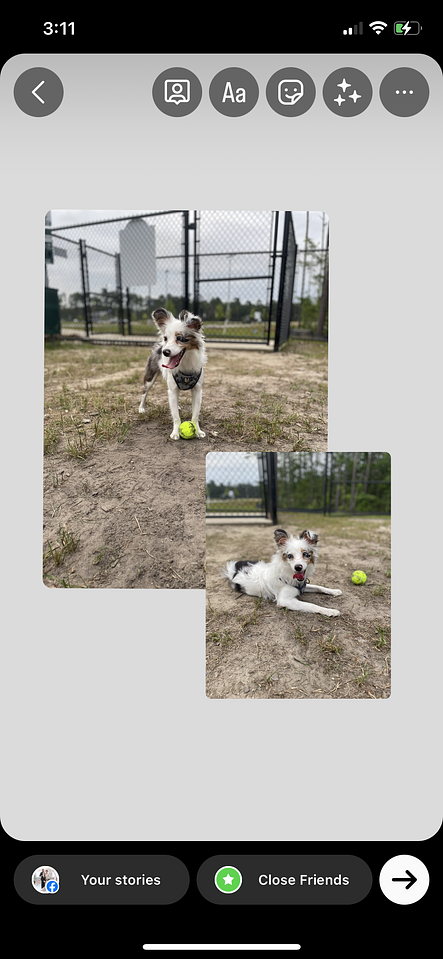
Method 2: Grid layout: Open the story camera and tap Layout (the icon with three windows in a square) on the left side. Choose from six grid configurations that support two, three, four or six photos in a single story.

17. Add brand colors to your story
Match your story text and drawings to your exact brand palette using the color dropper tool, with no guesswork and no off-brand shades.
Save an image of your brand color palette to your camera roll. After starting your story, go to Stickers, tap the camera roll option and bring that palette image into the frame. Then type your text or open the drawing menu, select your text and tap the dropper to sample any color from your palette image.
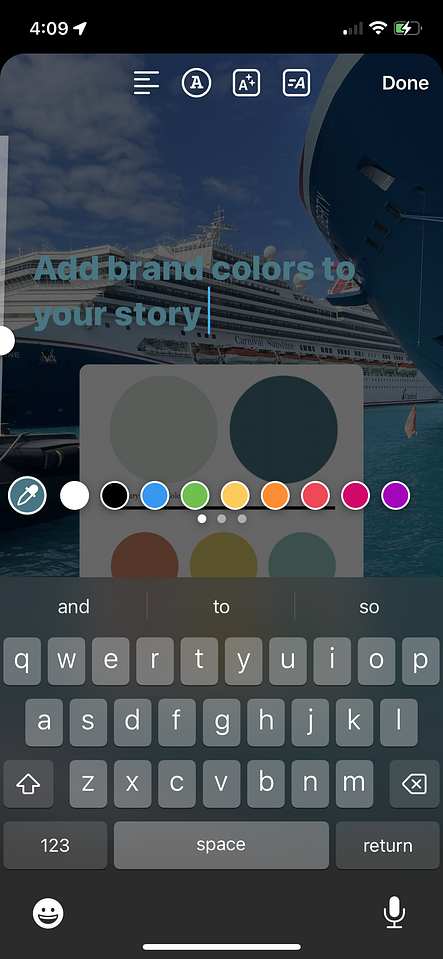
Pro tip: Use the dropper before you start drawing, not after. Selecting a color mid-stroke resets your brush.
Instagram growth hacks
18. Cross promote your content
Cross-promoting your content across platforms accelerates audience growth without requiring additional content creation. These Instagram hacks for growth work best when combined. Connect your Instagram account to your Facebook Page to share posts, Reels and Stories simultaneously.
To activate cross-posting, link your Facebook and Instagram business accounts. Each time you publish a new image or video, toggle the option to share to your Facebook Page.
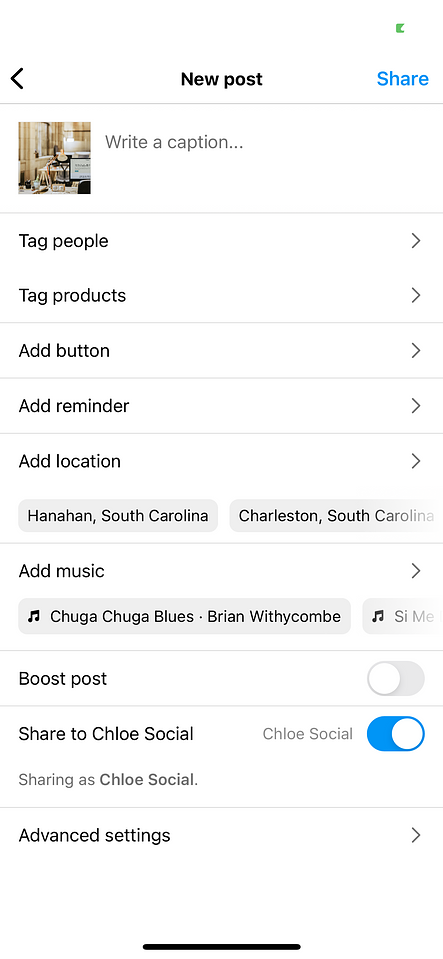
You can also share Stories to both platforms at once. Cross-posting to Facebook from Instagram keeps your content working across channels without doubling your production time.

19. Use paid advertising
Paid advertising on Instagram puts your brand in front of audiences who haven’t discovered you yet. Take advantage of Instagram advertising with these ad formats:
- Photo ads
- Carousel ads
- Video ads
- Reels ads
- Story ads
Build your ad visuals, write your captions and define your target audience before launching. Precise targeting is what separates high-performing campaigns from wasted spend.
20. Create an influencer marketing strategy
Influencer marketing is one of the highest-ROI growth strategies available on Instagram. The platform’s visual nature makes it ideal for creator partnerships. Every niche has influencers with engaged audiences ready to discover your brand.
The most effective approach goes beyond sending free products. Build a strategy that identifies creators whose content, voice and audience align with your brand values—not just their follower count. Topical alignment drives authentic connections that convert.
Sprout Social Influencer Marketing uses AI-powered search to surface creators who regularly discuss topics relevant to your brand. Brand Fit Score gives you instant clarity on creator fit, so you spend less time vetting and more time activating.
21. Publish at the best time
Timing your posts to match when your audience is most active drives reach and engagement. Based on Sprout Social’s analysis, the overall best days and times to post on Instagram include:
- Mondays: 2 p.m.–4 p.m.
- Tuesdays: 1 p.m.–7 p.m.
- Wednesdays: 12 p.m.–9 p.m. and 11 p.m.
- Thursdays: 12 p.m.–2 p.m.
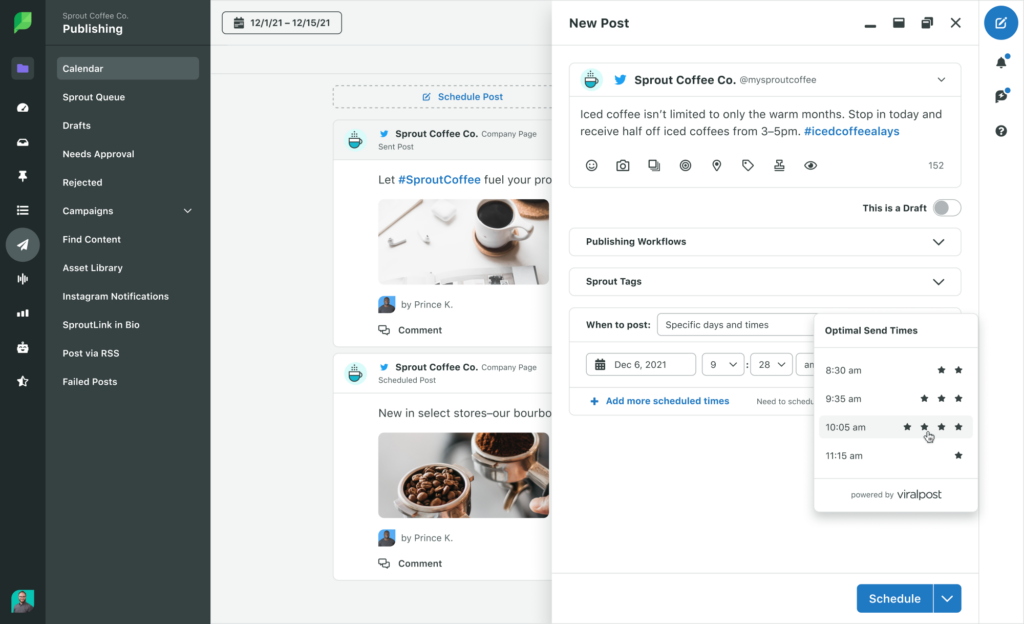
These are strong starting benchmarks, but your audience’s behavior is unique. Use Sprout’s ViralPost® technology to find the best times to post on Instagram for your specific followers.
Use the Choose Optimal Times feature when scheduling content using Sprout—our AI analyzes your data and surfaces the posting windows most likely to drive engagement and results for your specific followers.
Instagram SEO hacks
Instagram is a search engine. Treat it like one, and your content reaches the right people without paying for every impression.
Our Q3 2025 Consumer Pulse Survey shows 52% of consumers prefer to search on social media over AI chatbots. They seek user-generated content and personal experiences.
Your Instagram profile is a search result. Optimize it accordingly.
22. Treat Instagram like a search engine
Write for the way people search. Use clear, topic-specific language in your profile, captions and on-screen text so your content surfaces for the right queries.
- Use the exact words your audience types into search.
- Match your caption language to your visual content.
- Keep your niche consistent across every post.
23. Use keywords in your captions
Lead with the main phrase in the first line of your caption. Instagram reads that opening text to understand what your post is about, so put your most important keyword where it counts most.
24. Add alt text to your posts
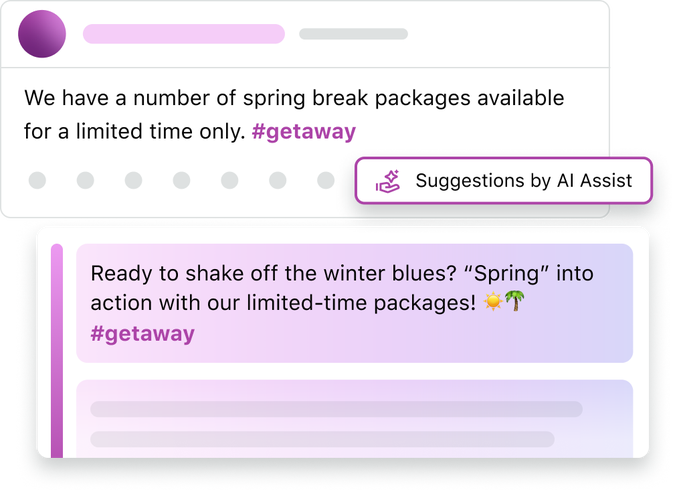
Alt text improves accessibility and gives Instagram direct context about your content. These Instagram hacks for SEO work together, so write a specific, descriptive sentence for every image. It influences how Instagram indexes your posts.
You don’t have to write these descriptions from scratch. Sprout”s Enhance by AI Assist generates descriptive alt text and caption suggestions so you can move faster without sacrificing quality—keeping your posts accessible and search-friendly at the same time.
25. Use hashtags strategically
Choose a focused mix of branded, niche and category hashtags that match the post’s topic. Relevance beats volume. A tight set of on-topic hashtags outperforms a generic dump every time.
Review our roundup of trending Instagram hashtags for additional context on hashtag best practices. For a broader perspective, see how Instagram features and tips can complement your hashtag strategy.
26. Track trending topics with social listening
The strongest Instagram SEO strategy starts before you open the caption editor. Use social listening to identify recurring phrases, audience questions and rising themes. Then build content around what people already search for.
Sprout surfaces those patterns fast, so you publish content before competitors spot the same opportunity.
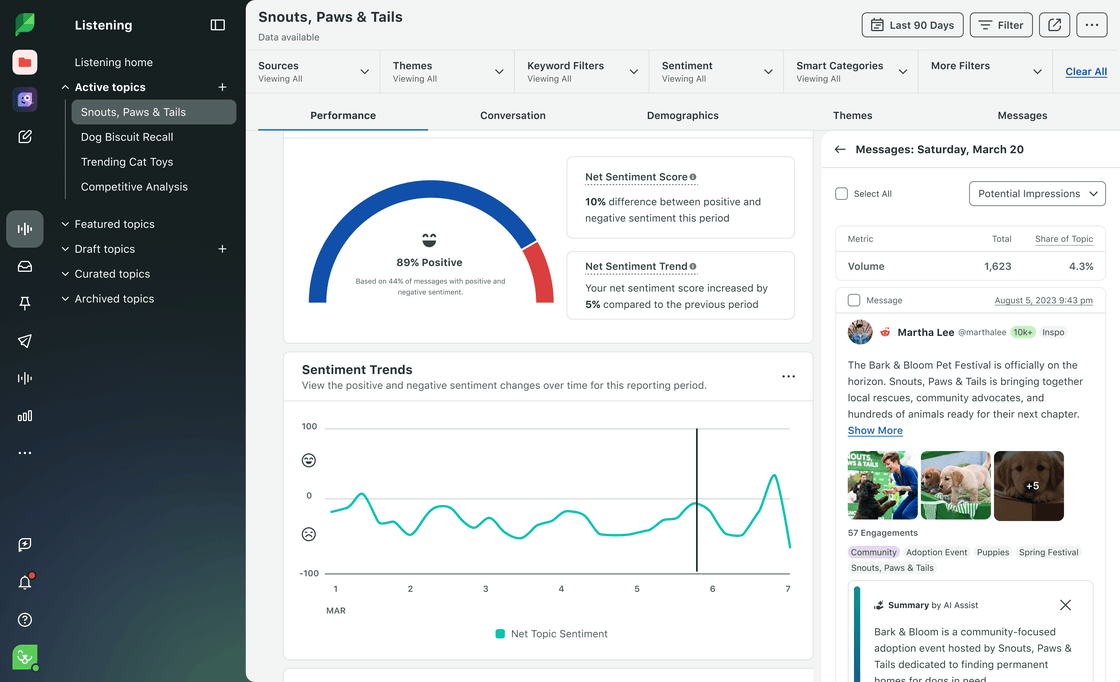
For a deeper dive, explore Instagram social listening strategies that move your brand from reactive to proactive.
Instagram Reels hacks
27. Schedule your Reels
Scheduling Reels in advance transforms your workflow. Batch-create your Reels, then batch-schedule them. This cuts production time and keeps your content calendar consistent.
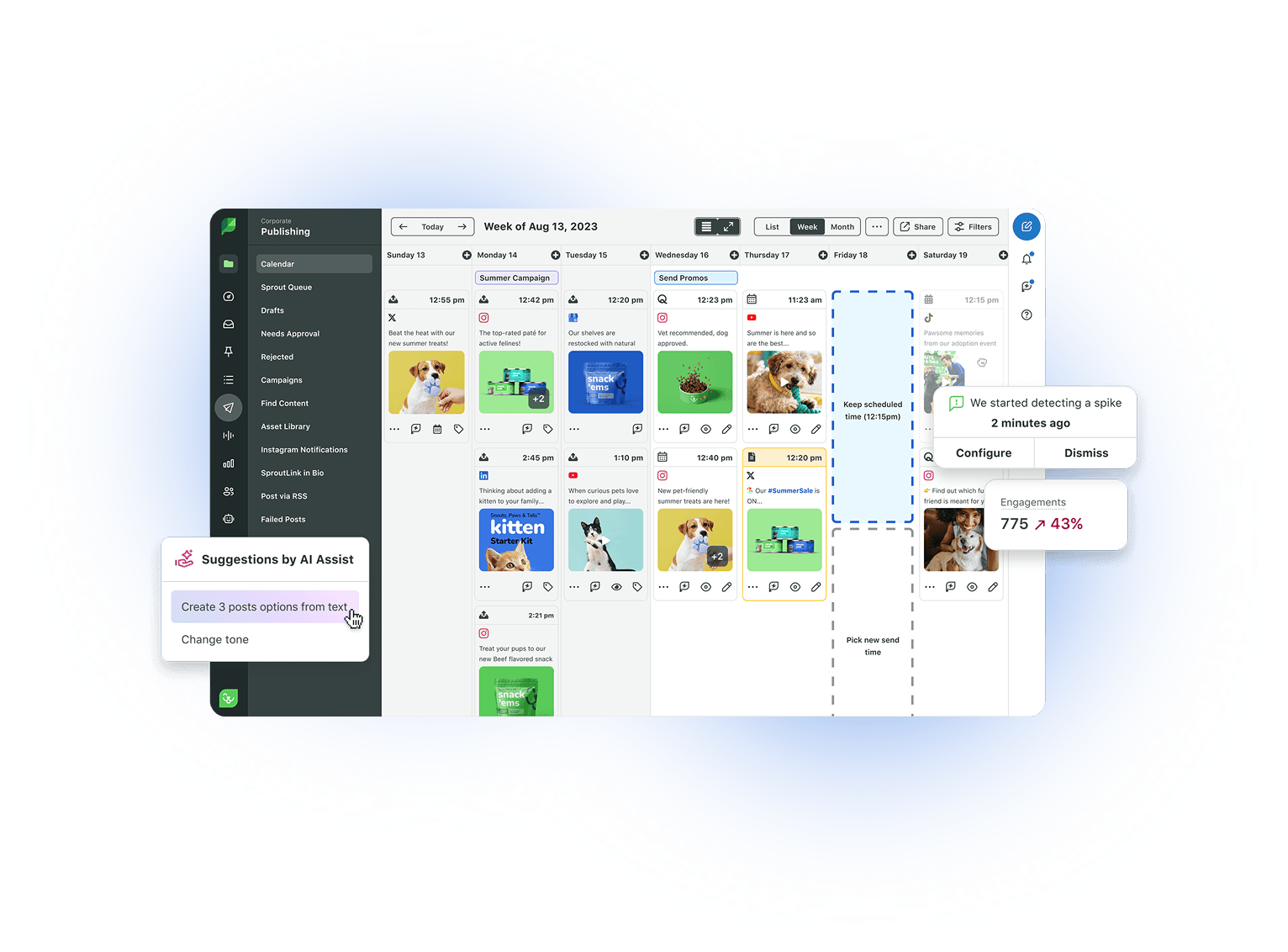
Sprout’s publishing tools let you schedule Reels alongside all other Instagram content in one shared calendar. Your entire social strategy stays coordinated and on track.
28. Share your Reels in-feed
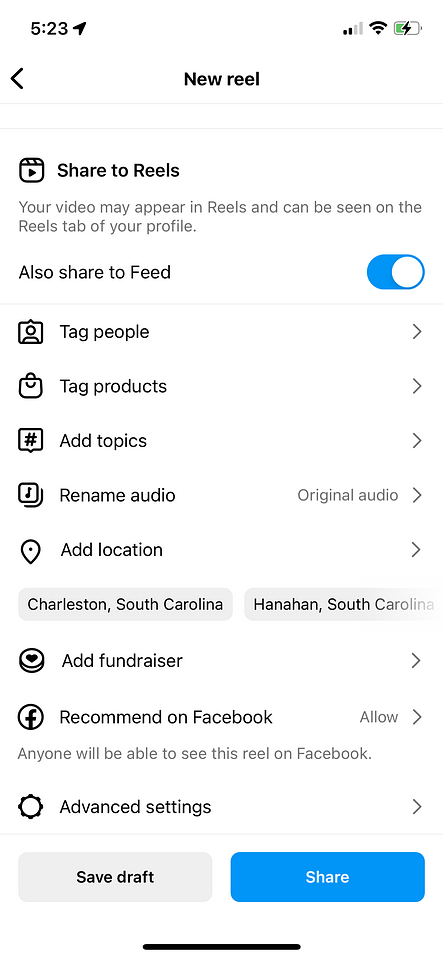
When you publish a new Instagram Reel, toggle on the option to share it to the feed. Your Reel appears in the main feed and the Reels tab simultaneously, doubling your chances of reaching audiences who skip the Reels section.
29. Use transitions strategically
Transitions—the way you splice two clips together—are one of the fastest ways to increase watch time on Reels. Creative transitions reward viewers who stay through the cut, signaling quality content to the algorithm.
Study transition techniques on Instagram Reels and TikTok, then test them to find what resonates with your audience. For more inspiration, check out these Instagram story hacks and features worth exploring.
30. Use trending audio
Trending audio is one of the most direct paths to expanded reach on Reels. Record in the app or upload an existing video. Tap the music icon and browse featured audio, search for specific clips or explore suggested tracks.
Prioritize audio that’s actively trending, not just popular, to maximize distribution to new audiences. Learn more about Instagram algorithm hacks for going viral with Reels.
Instagram hacks for writing captions
31. Add line breaks to your captions
Line breaks transform a wall of text into a caption people read. Break up longer captions to improve readability and keep your audience engaged.
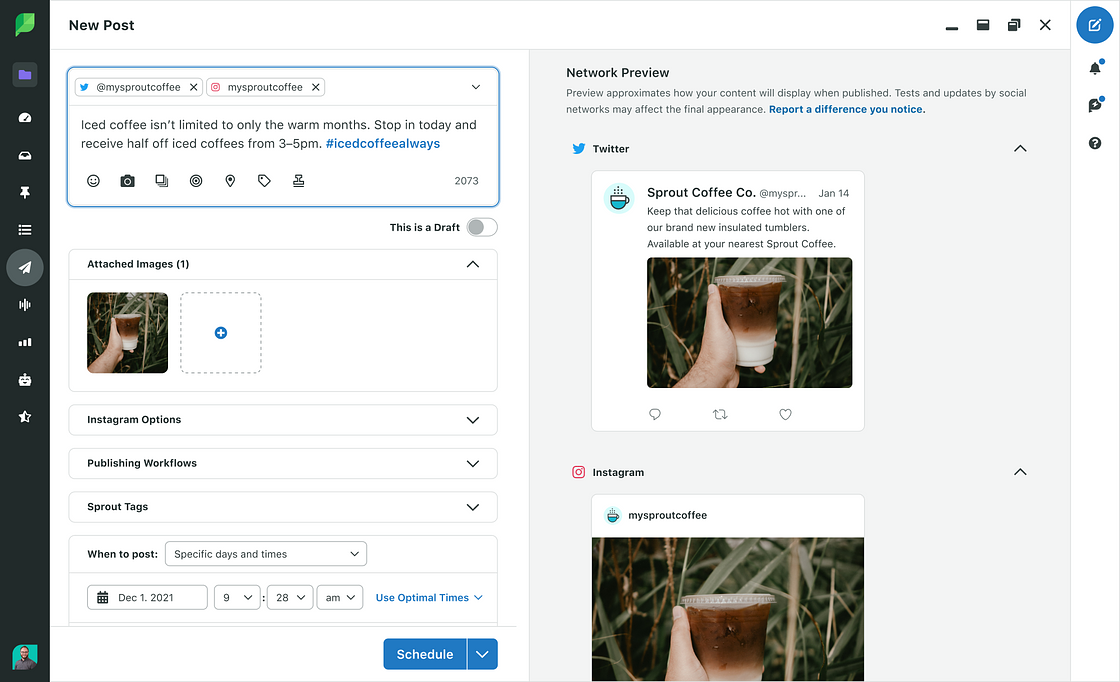
On mobile, switch from the ABC keyboard to the 123 keyboard to access the Return button. In Sprout’s Compose window, hit Enter/Return on your keyboard—no workarounds needed.
32. Hide your hashtags
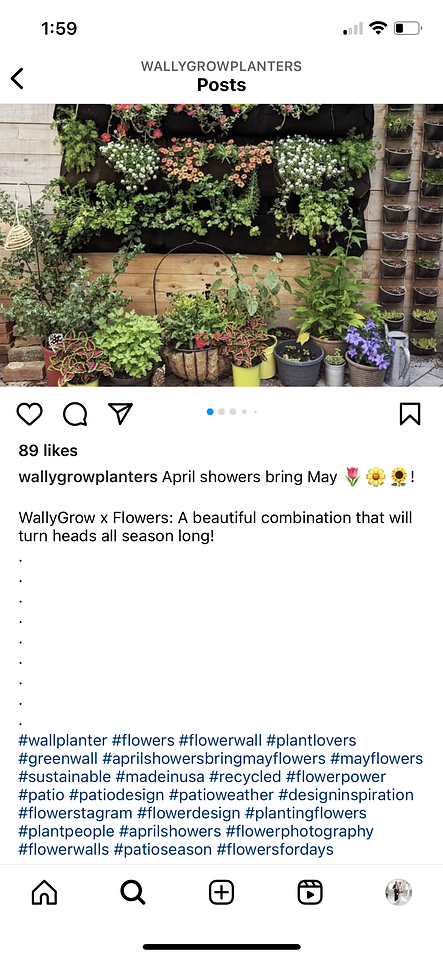
Hashtags expand your reach, but cluttering your caption with them kills the aesthetic. Push them out of sight by adding line breaks or periods between your caption text and your hashtags.
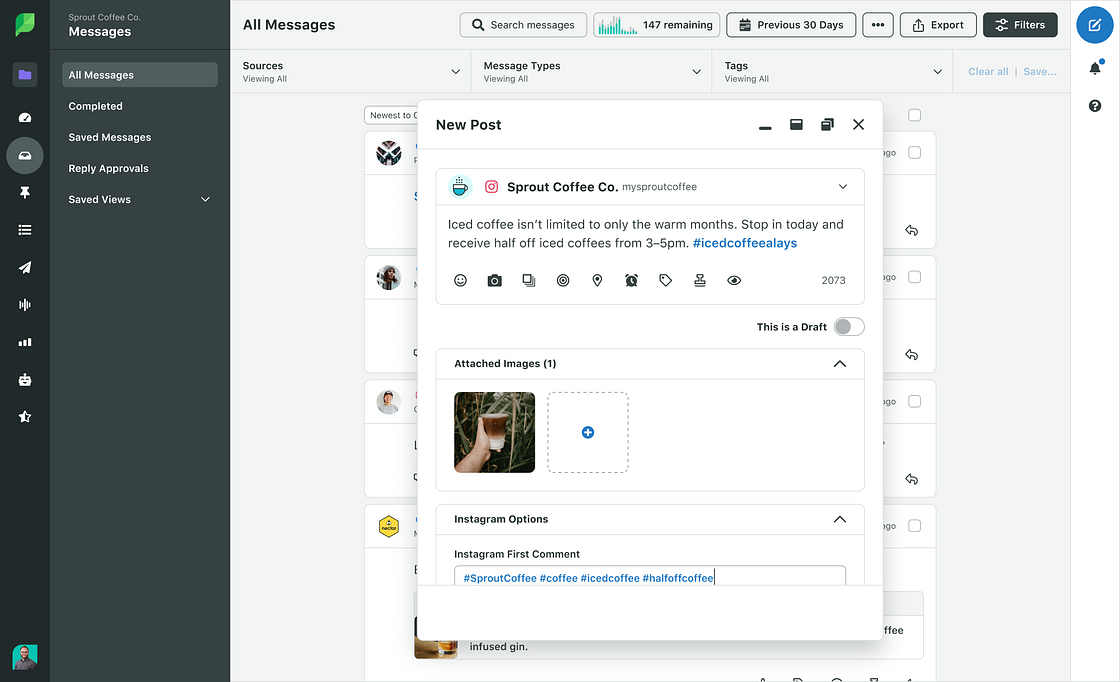
Alternatively, drop hashtags into the first comment instead of the caption. The Instagram algorithm indexes both the caption and the comments for search discovery. With Sprout,, you publish your image and first comment simultaneously. This captures hashtag reach from the moment your post goes live while keeping your caption clean.
33. Use special fonts in your captions
Special fonts and characters make your captions stand out in a crowded feed. Use them to open with a hook or emphasize a key phrase. Keep usage minimal so your content stays accessible to screen reader users.
Instagram hacks for sharing content
34. Customize how strong your filter is
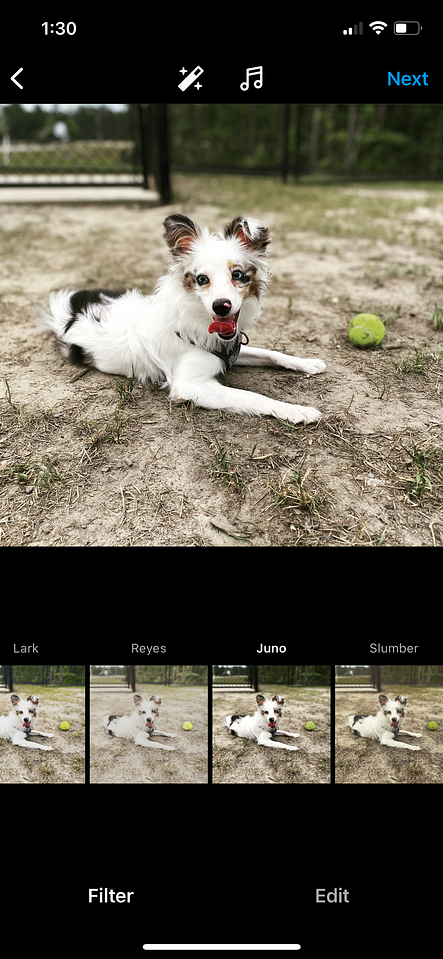
Select a filter, then tap the magic pen icon at the top of the screen. Use the slider below the image to dial in the exact intensity you want.
35. Get creative with your grid
Your Instagram grid is prime real estate. Treat it like a visual brand statement. Try these approaches to make it stand out:
- Colorblock nine photos at a time before switching your palette.
- Make every third post a quote or branded graphic for rhythm.
- Design a puzzle grid where each photo flows into the next.
36. Save drafts for later
Tap the plus sign, choose your image, add filters or start your caption, then tap the back button. When prompted, select Save draft to preserve your edits without publishing.
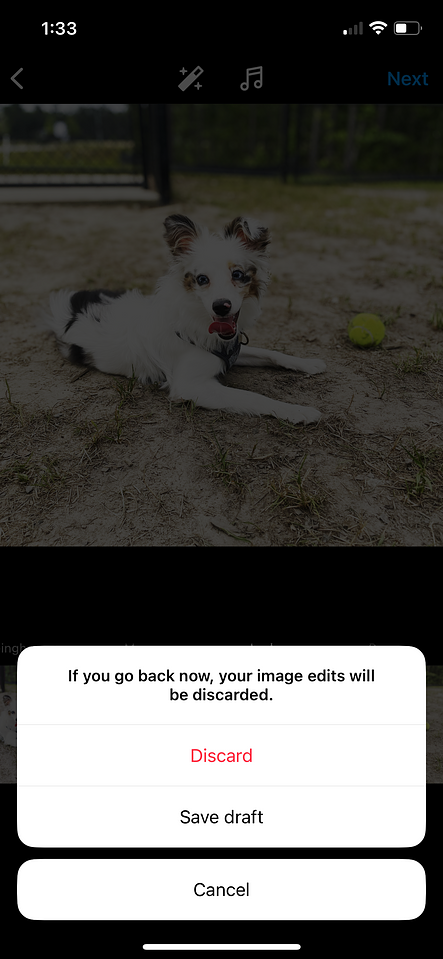
To publish later, tap the plus sign again and select Drafts. To delete a draft, tap Manage then Edit and remove what you no longer need.
37. Save your live video
The moment your Instagram Live broadcast ends, tap Download Video to save it to your camera roll. Longer videos take a few extra minutes to appear, so give it time before you start editing.
38. Remove the audio from videos
When uploading a video to your feed, tap the music icon at the top of the editing page. Select Controls, then drag Camera audio down to 0 to strip the sound entirely.
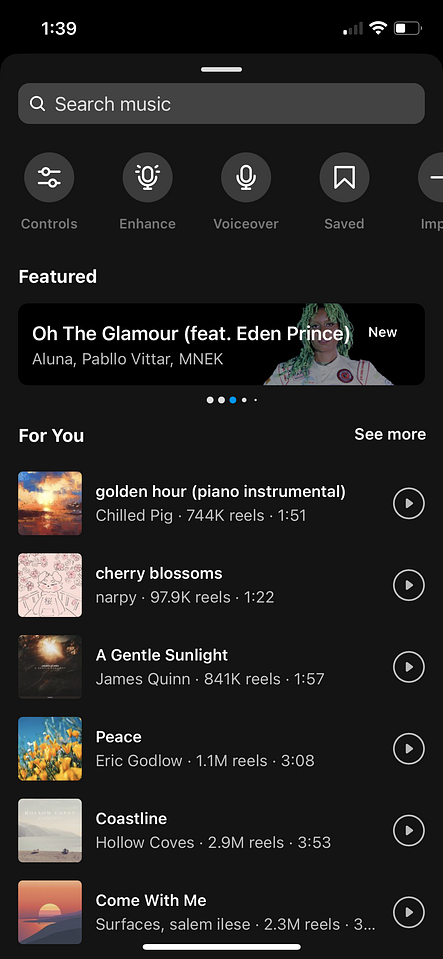
From there, add music, voiceover or sound effects to replace the original audio and give your video the right feel.
39. Create a cover photo for your video
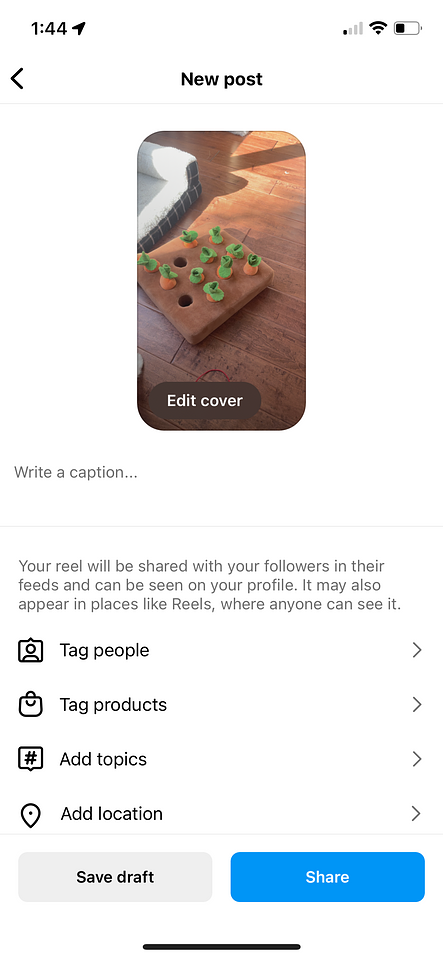
When sharing a video on Instagram, tap the Edit cover button on your video thumbnail. Choose a clip from the video or upload a custom graphic from your camera roll to control exactly what appears on your profile grid.
40. Turn your Instagram feed into an online shop
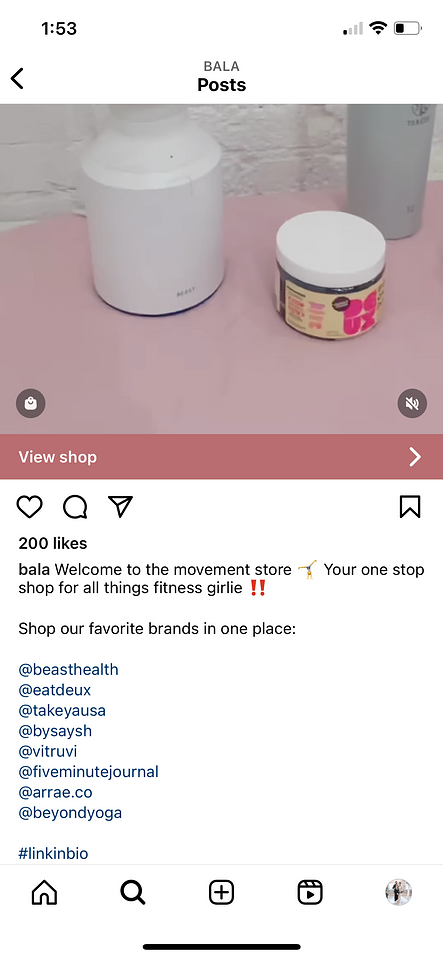
Instagram Shopping transforms your feed into a direct sales channel. Tag products in each post so your audience can purchase without leaving the app.
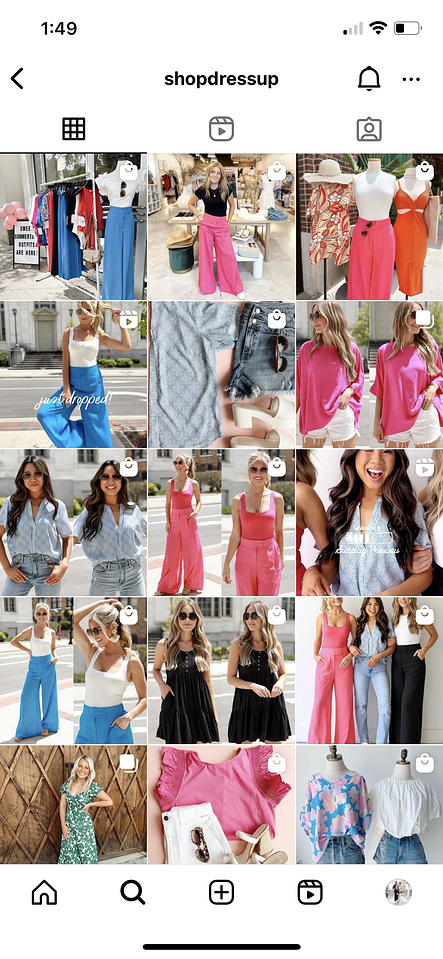
According to the 2025 Sprout Social Index™, 81% of consumers say social media compels them to make spontaneous purchases multiple times per year. A shoppable feed puts your products directly in the path of that intent.
41. Schedule your Instagram content ahead of time
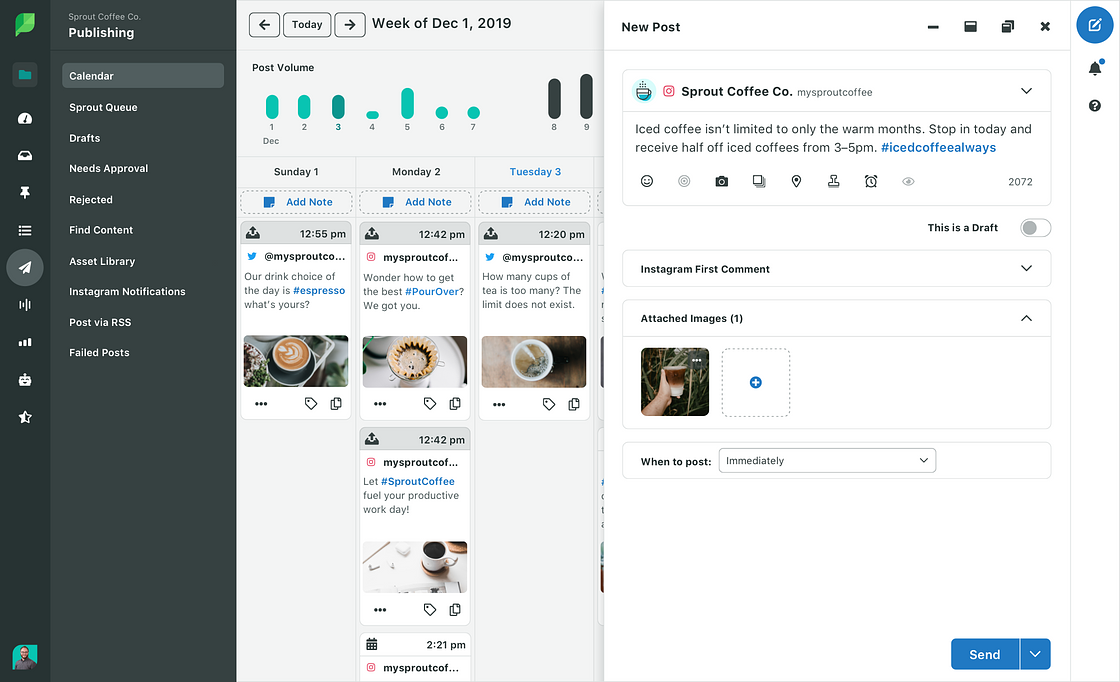
Use Sprout to schedule your Instagram content ahead of time and reclaim hours every week for strategy. Sprout’s AI-powered ViralPost technology identifies optimal send times. Your posts go out when they’re most likely to earn engagement.
Social media management that fits your budget.
Sprout Social Essentials gives you the publishing, scheduling and reporting tools you need—starting at $79/month.
Built for solo marketers and lean teams, Essentials includes everything you need to execute your Instagram strategy without the complexity of higher tiers. Manage up to 5 social profiles from one collaborative calendar, and get access to key features like:
- AI-powered Optimal Send Times (ViralPost®) to post exactly when your audience is active.
- SproutLink (Link in Bio) to drive traffic from Instagram.
- AI Assist for fast caption suggestions and alt text generation.
- Built-in reporting for profile, post and network-level analytics, plus a built-in Google Analytics report to see how social drives website traffic.
Start your 30-day free trial of Essentials today (no credit card required).
Instagram hacks for commenting and DMs
Instagram hacks for comments and DMs turn attention into community. Move fast, stay organized and make every response count.
42. Filter comments based on keywords
Set keyword filters to block spam, hide harmful language and keep your comment section clean. This protects your team and your community at the same time.
43. Turn off commenting on certain posts
Not every post needs an open thread. When a conversation stops serving your audience, close it and redirect your team’s energy toward interactions that drive real engagement.
44. Reply faster to comments
Speed is a competitive advantage. According to the 2025 Index, nearly three-quarters of consumers expect brands to respond within 24 hours. Save replies for common questions, assign messages clearly and keep your response workflow tight.
Sprout’s Smart Inbox pulls Instagram messages into one unified inbox so your team moves faster without duplicating effort. Enhance by AI Assist takes it further by analyzing the tone of incoming messages in real time and suggesting tailored responses that match the context and sentiment of each conversation. Your team replies faster without losing the human touch that builds trust. This combination of speed and personalization turns routine responses into relationship-building moments.
45. Experiment with disappearing notes
Notes are a low-effort way to stay visible in your followers’ inboxes. Use them to surface updates, spark conversation or test casual messaging before committing to a full campaign.
46. Use Instagram Channels to communicate directly with your audience
Instagram Channels let creators and brands broadcast messages directly to followers who opt in. Use Channels to share updates, behind-the-scenes content, exclusive offers or time-sensitive announcements. Followers receive notifications when you post, so your message lands fast.
47. Make sure your notifications are set up
Notification settings determine what your team sees first. Configure them so high-priority replies, mentions and messages surface immediately.
Go to your profile, tap the hamburger menu and select Settings and privacy. Tap Notifications to customize alerts for comments, likes, messages and mentions. Turn on push notifications for direct messages and comments so your team can respond while conversations are still active. The faster you reply, the stronger the signal you send to both your audience and the algorithm that your account prioritizes engagement.
Measure your Instagram hacks with social media analytics
These Instagram hacks only deliver results when you track what’s working. Measure reach, saves, replies, clicks and conversions, then double down on what earns the most impact.
Start with native insights
Instagram Insights gives you a fast read on reach, engagement and audience activity. Use it to spot early patterns and pressure-test new ideas before scaling.
Track performance over time
One strong post doesn’t make a strategy. Look at trends across weeks and months to see what keeps delivering, not just what spiked.
Find your top-performing content types
Compare Reels, Stories, carousels and static posts side by side. The goal isn’t more content. It’s sharper content that earns attention faster.
Turn audience data into publishing decisions
Use timing, engagement and profile data to decide what to post, when to publish and which messages deserve a bigger push. Data-backed decisions outperform gut instinct every time.
Scale your reporting with Sprout Social
Sprout centralizes Instagram performance data—profile reporting, post-level insights and publishing analytics—in one place. According to a Forrester study, organizations using Sprout reduce reporting time by 75%. This frees your team to act on insights.
Sprout’s AI-powered analytics go beyond collecting notification data—they auto-generate executive-ready insights that connect your response times and engagement patterns to business outcomes. This transforms raw activity into strategic intelligence your leadership team can act on.
Dig into the full picture with Sprout’s Instagram analytics tools. Pair your reporting with our guide to the most important Instagram metrics.
Improve your Instagram marketing strategy and results
The best Instagram hacks sharpen your strategy, not just your workflow. Pair creative shortcuts with smarter timing, clearer reporting and a faster publishing rhythm. Instagram becomes a direct driver of business impact.
Tighten your profile, strengthen your content and build a publishing workflow your team can scale. Sprout brings your Instagram strategy, analytics and engagement into one unified platform—so your team moves faster and proves results with absolute conviction.
Start a free 30-day trial or request a demo. See how Sprout Social handles your entire Instagram workflow in one platform.
Instagram hacks FAQs
What is the 5-3-1 rule on Instagram?
The 5-3-1 rule on Instagram is an outbound engagement framework: for every 5 posts you comment on, you re-share 3 pieces of content and publish 1 original post. It is designed to build reciprocal engagement, grow your visibility in other accounts’ communities and balance outbound interaction with original content creation.
How do you grow your Instagram following quickly?
To grow your Instagram following quickly, you must combine consistent posting, strategic hashtag usage, trending audio integration and active community management. Publishing when your audience is most active using Sprout Social’s ViralPost® technology accelerates your organic reach without requiring you to create additional content.
How do I find the best time to post on Instagram?
Instagram’s native Insights show when your followers are most active under the Audience tab. For a more precise and automated approach, use Sprout to analyze your historical engagement data and surface the exact posting windows most likely to earn results for your specific audience.
Your audience’s behavior is unique. Your posting schedule should reflect that.
How do I measure whether my Instagram strategy is working?
Track reach, engagement rate, saves, follower growth and profile visits as your core performance indicators. Saves and shares signal that your content is valuable, not just scroll-stopping.
Beyond Instagram’s 60-day data window, Sprout centralizes post-level and profile-level analytics in one place. This helps you identify trends and make smarter publishing decisions.
39 free social media strategy templates that will elevate your workflows
Published on August 20, 2026 Reading time 15 minutes







Share