How to go live on Facebook: Requirements, steps and tips for brands

Written by Mary Keutelian
Published on October 20, 2026
Reading time 9 minutes

Table of Contents
Live video strips away the polish and puts your brand in a real-time conversation with your audience. That unfiltered access is why Facebook Live still earns a place in a serious Facebook marketing strategy. This guide shows you how to go live on Facebook and how to make every broadcast pay off for your brand.
The rules have changed. Meta’s new eligibility requirements and expiring replays mean you must act decisively. Brands that still run live like it’s 2016 leave reach, insight and reusable content on the table.
The upside is bigger for teams that plan ahead. One well-run broadcast gives your community managers, product marketers and care team a steady stream of questions, feedback and clips to act on. That’s the difference between going live and getting results from live. Get the setup right, and every stream becomes a source of insight for your whole organization.
Why should brands use Facebook Live?
Facebook Live means broadcasting real-time video from a Facebook Page, profile, group or event so viewers can react and comment as it happens.
Your audience is already there. Data from Sprout Social’s 2026 Social Media Content Strategy Report shows 85% of consumers have a Facebook profile. Live video ranks as the third most likely content type Facebook users engage with, behind short-form video and text posts.
That preference is specific and measurable: 22% of Facebook users say live video is the content type they engage with most, according to our roundup of Facebook stats for marketers. For your brand, that’s a dedicated audience segment that wants real-time access to your brand.
Live pays off when you tie it to clear business goals. These formats earn their place on a brand’s content calendar:
- Product launches and demos: Show the product working and answer objections in real time.
- Live Q&A and AMAs: Put product experts, executives or support leads in front of your community.
- Events and behind-the-scenes access: Extend conferences, store openings or sponsorships to people who can’t attend.
- Customer education: Walk viewers through setup, troubleshooting or new features.
Live creates an immediate feedback loop. The questions and comments that surface during a broadcast are first-party signals your product, care and marketing teams can act on.
What do you need to go live on Facebook?
To go live on Facebook from a Page or professional mode profile, you need an account that’s 60+ days old with 100+ followers. These rules took effect June 10, 2024, and they still appear in Meta’s live requirements. To broadcast from a Page, you also need Facebook access or task access that lets you create content.
Use this checklist to confirm your team is ready:
| Requirement | What you need |
|---|---|
| Account age | At least 60 days old |
| Audience | At least 100 followers on the Page or professional mode profile |
| Permissions | Facebook access or task access to create content on the Page |
| Device | Facebook app on iOS or Android, or a computer with a webcam |
| Production setup | Strong internet connection, external mic, lighting and a tripod |
| Optional software | Streaming software that connects to Live Producer with a stream key |
Don’t let a missing permission role stall your broadcast. Audit who holds content access on each Page well before launch day.
How to go live on Facebook from mobile or desktop
You can go live from a Page, profile, group or event. Brand Pages and personal profiles share the same core live tools, and Meta keeps shipping recent feature updates that change how broadcasts work.
Facebook caps broadcasts at eight hours. Split longer programming into multiple streams. Before you hit Go live, make sure the stream fits your broader video strategy so it supports your goals before, during and after the broadcast.
How to go live on Facebook from the mobile app
To broadcast from your phone, follow these steps:
- Open the Facebook app and switch to the Page or profile you want to broadcast from.
- Tap “What’s on your mind?” or the + icon and choose Live video.
- Allow Facebook to access your camera and microphone.
- Add a description, tag people or add effects.
- Choose your audience. Page broadcasts are public.
- Tap Go live to start the broadcast.
- Tap Finish when you’re done, then choose what to do with the video.
How to go live on Facebook from a computer
Live Producer is Meta’s desktop tool for live video. Go to facebook.com/live/producer, pick the Page or profile you’re broadcasting from and choose how you’ll stream:
- Webcam: Broadcast with your computer’s built-in or external camera.
- Streaming software: Copy the stream key from Live Producer and paste it into your encoder.
Streaming software gives production teams more control over graphics, camera switching and screen sharing. Add your description, set your audience and select Go live when you’re ready.
How to go live with a guest
Live With lets you invite a guest or multiple guests into your broadcast. Live With is mobile-only (iOS and Android). Plan your co-hosted interviews and panels accordingly.
What are the best Facebook Live tips for brands?
Going live takes a few taps. Making it worth your audience’s time takes strategy. These 10 Facebook Live tips cover what to do before, during and after your broadcast.
1. Source content and themes from your community
Your community knows what it wants. Let your audience pick the topic. It’s the fastest way to guarantee high-value content.
Run polls, ask your followers what they want to see or build themes from recurring questions and comments. Your customer care team already hears the questions people ask most, so turn those into your next broadcast topics.
2. Promote before you start your Facebook Live
Facebook Live videos work more like an event than a blog post. Build interest before the broadcast to capture maximum viewership. Paid promotion extends your reach beyond current followers, which makes a broadcast a natural fit for a focused advertising campaign.
To plan ahead, schedule your broadcast in Live Producer, then share the date and time everywhere you promote it. Check the in-product scheduling options before you lock in your promotion timeline.
Push the announcement on your Facebook Page early and often. Don’t just repeat that you’re going live. Every reminder should share something new, like a tip you’ll cover or a guest you’ll feature.
Your Facebook efforts don’t exist in a silo. Cross-promote your broadcast on your blog, in newsletters and across other social media platforms too.
3. Prepare yourself by limiting distractions
Facebook Live videos feel more relaxed than a television ad or YouTube production, but that doesn’t mean you skip the prep. Every broadcast represents your brand, and live leaves no room for a second take.
Run a full rehearsal to test your lighting, sound and surroundings. Invest in a tripod to avoid the “shaky cam” experience and cut background noise whether you’re indoors or outside. A strong broadband connection matters as much as any camera.
Loop in legal or communications early if your broadcast covers product claims, pricing or regulated topics. A shared run-of-show keeps every stakeholder aligned before the camera turns on.
4. Make formatting decisions
While you prep for your big debut, decide how you’ll shoot your video and when you’ll stream it. In the Facebook app on mobile, you can broadcast vertically or horizontally depending on what gives you the best view.
Try both in a test run to see how you look to your audience. Vertical framing can make you feel too close to the camera for an interview, but it works well for an intimate behind-the-scenes chat.
Next, decide whether you’ll use third-party tools. Streaming software adds production value like overlays and multiple camera angles. Ecamm Live, a Mac app, streams to Facebook Pages and profiles but not to groups, so research which tool fits your setup.
The last formatting decision is how you’ll deliver the content. Will one host carry the show, or will you invite guests? If you bring on guests, choose between an interview and an open conversation.
Ask yourself as many questions as you can about the format, then answer them. If you can’t answer them all, your premise needs more work.
5. Choose the right time for your Facebook Live broadcast
Timing makes or breaks your first impression. Don’t waste a broadcast on an empty room. Use data to go live when your audience is most active.
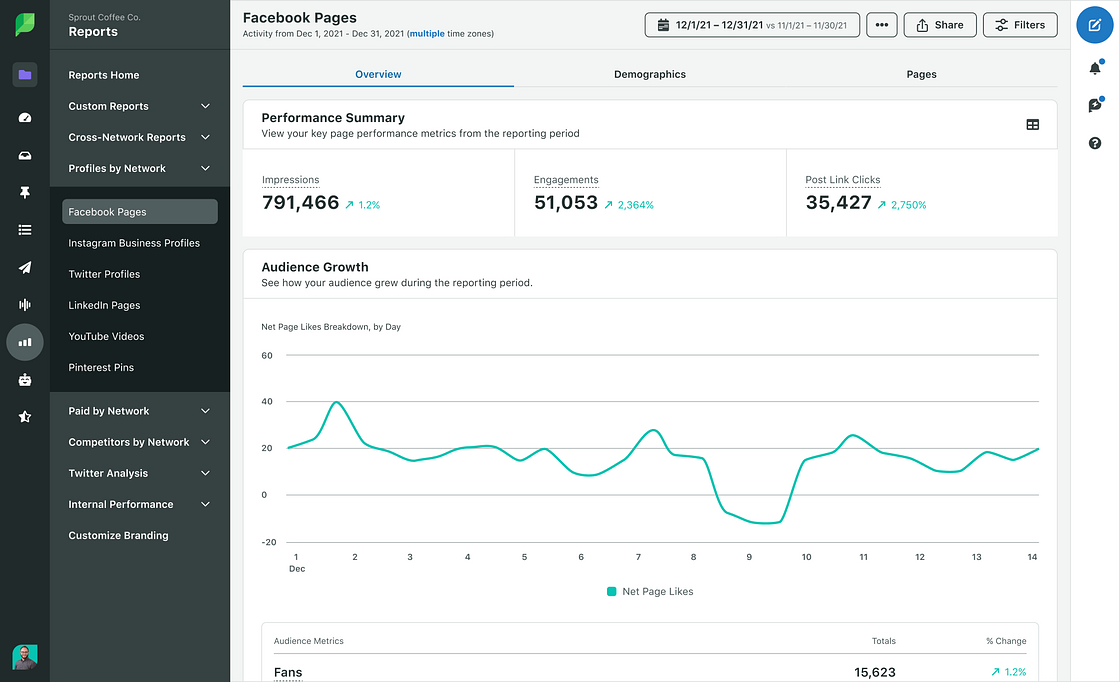
Know your target audience. Sprout’s Facebook reports break down audience growth and how people engage with your paid and organic content.
ViralPost also calculates your best posting windows across every profile. Use those windows as a data-backed starting point for your broadcast time, then refine based on live attendance.
6. Offer context throughout the broadcast
Introducing yourself and your speakers at the start feels natural. But Facebook Live lets viewers join the stream at any moment. As more people arrive, revisit your introduction and tell your audience what’s happening with lines like this one:
“Hey, if you’re just joining us, welcome to our broadcast. We’re talking about [topic] and we’ve just covered [previous topic].”
Set up the agenda early so viewers know what to expect. When people know what’s next, they stick around for it.
7. Be responsive and interactive during your Facebook Live
Live comments and reactions are what make Facebook Live so engaging. Responding to questions on air turns a broadcast into a two-way conversation and invites more people to share their thoughts as you go.
Assign a moderator off camera to surface the most important comments and flag anything that needs a care or communications response.
Facebook Live is a real-time window into your brand experience, and your responses keep your audience in the moment. With Sprout, take control of your social channels and manage Facebook comments and messages in one single-stream Smart Inbox.
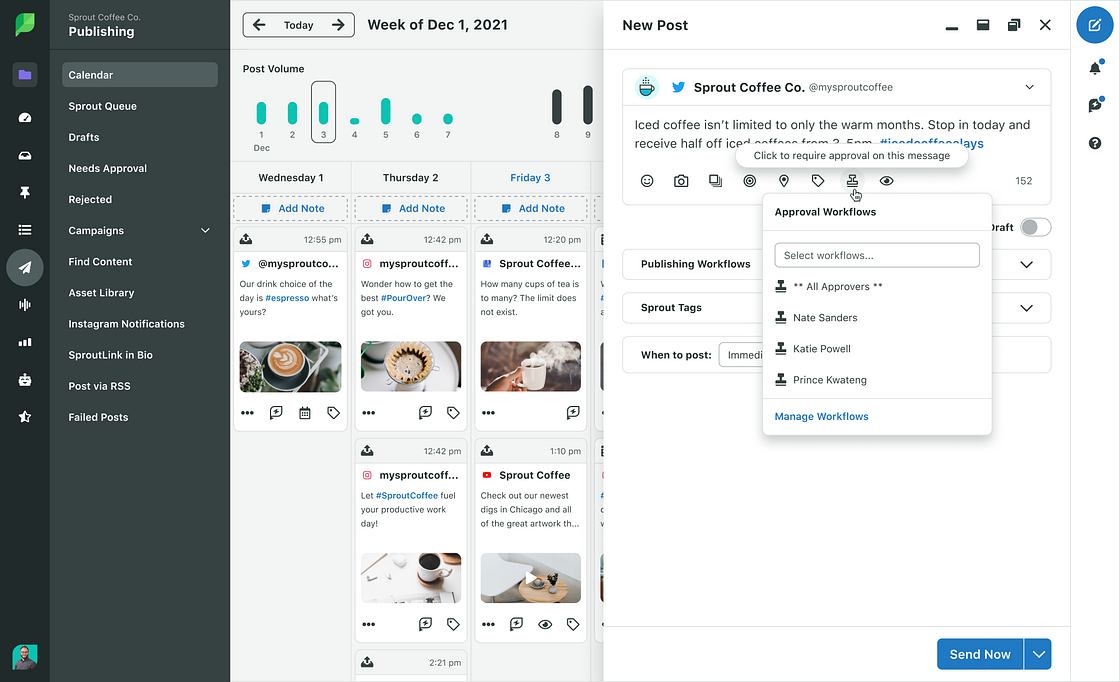
Big broadcasts need more than one moderator. When several teammates work the conversation, collision detection shows who’s already replying so nobody doubles up. Reply approvals route sensitive responses to a reviewer before they publish, which keeps high-stakes answers on brand.
Your broadcast keeps working after it ends. Since February 2025, live videos stay available on Pages and profiles for 30 days before Meta removes them, according to Meta’s live video storage policy. Download the replay to keep it or clip the strongest moments into Reels.
Shoutouts extend the conversation too. Share a quick post thanking people for watching and invite new questions in the comments. Your audience wants to feel appreciated—show them you’re listening.

8. Build authentic relationships with your audience
Live is your chance to connect authentically with your audience. Use it to build relationships that leave a lasting impression, and save the hard sell for other formats.
When you’re ready to broadcast, stay relaxed, smile and own the moment. Pitch your products or services only when it adds clear, immediate value. End with a call to action or weave references to your services into the content.
If you bring on guests, rehearse ahead of time so they feel relaxed. Spend a few minutes with them right before you go live. They’ll settle into being on camera, and you’ll start strong instead of warming up on air.
9. Use other social media platforms to promote Facebook Live
Don’t silo your live strategy to a single network. Cross-promote your broadcast across your other social media platforms to drive tune-ins. Not everyone on X (formerly known as Twitter), Instagram or LinkedIn will watch, but a direct link to the broadcast lowers the barrier.
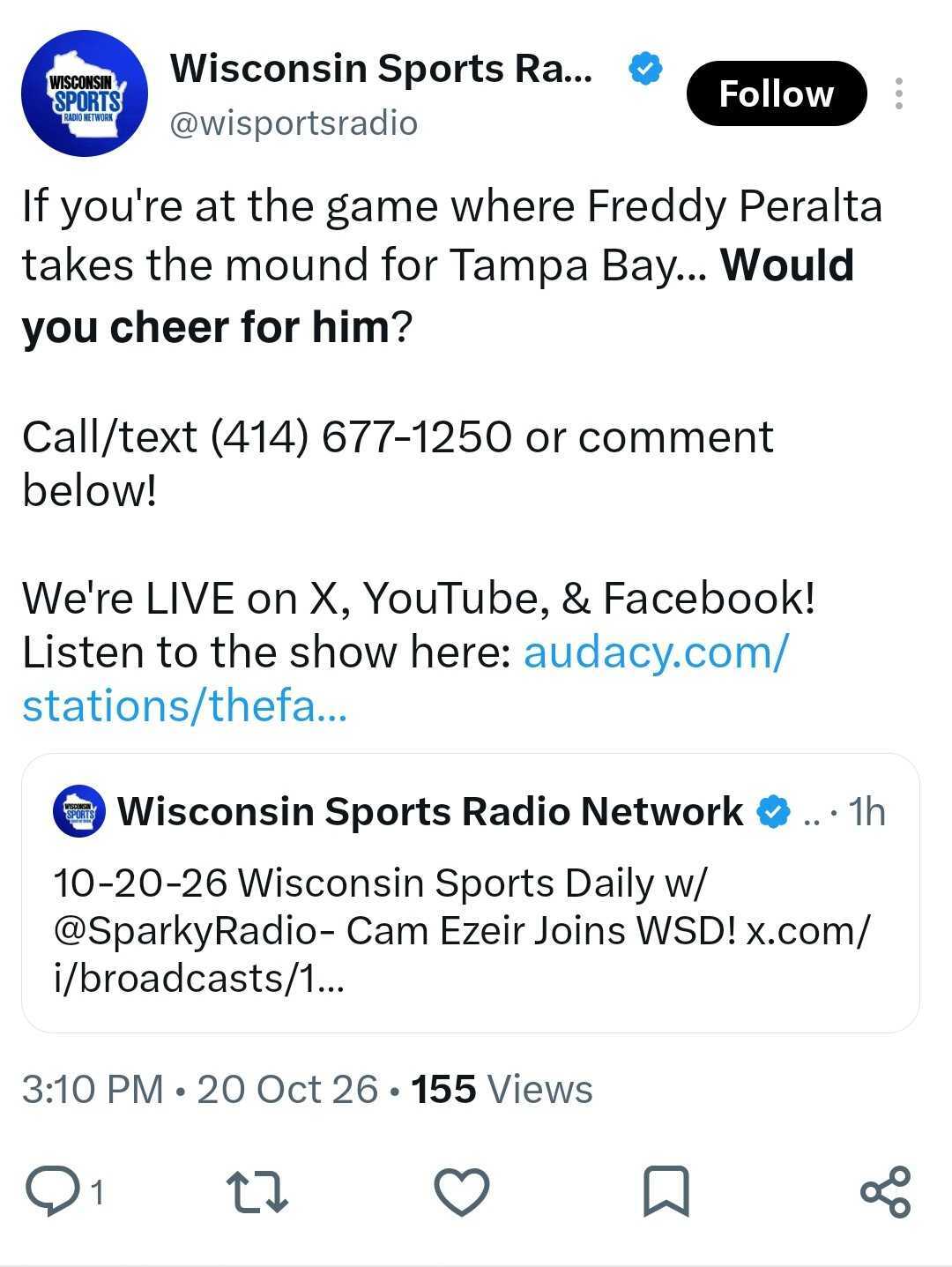
Source: X
NASA cross-promoted its Facebook Live streams on X with a clear time, topic and link. Post countdowns before your video or share highlights afterward for more awareness.
Don’t overdo it, though. Followers on other social media platforms chose those platforms for a reason, so keep cross-promotion occasional and give them a reason to click.
10. Analyze your results
Don’t just broadcast and move on. Analyze your performance to make your next stream even stronger. Facebook offers several metrics for your videos, including reach, reactions, comments and shares.
Meta’s Facebook metric names have changed. Views is now the primary metric for Facebook videos, and Minutes Viewed replaced Watch Time, according to Meta’s update on Views. Update your dashboards so year-over-year comparisons use the right terms.
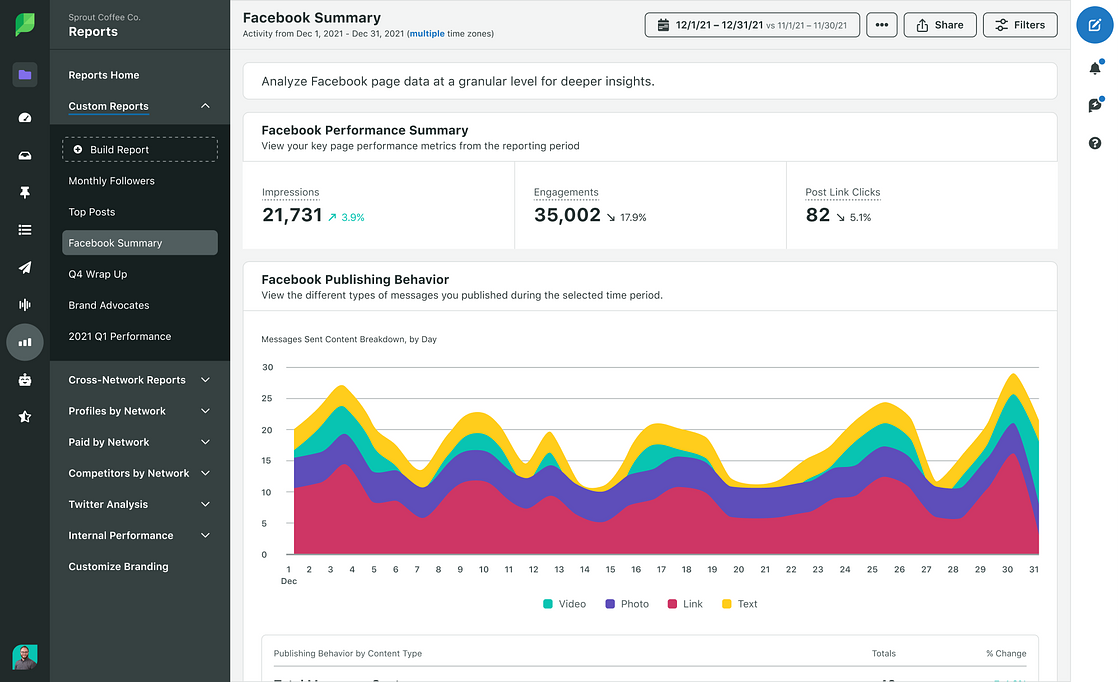
The more you learn about viewer preferences from your social media analytics, the stronger your next broadcast gets. Start with Sprout’s Facebook Pages Report to see how audience growth and engagement shift around each broadcast.
Tie every broadcast to a business goal before you go live, like sign-ups, product interest or fewer support tickets. Premium Analytics campaign tags let you group a broadcast with its promotional posts and report on the full campaign across every social media platform. That gives leadership one view of what live contributed.
Once you’ve learned all you can, use the data to experiment and optimize your next video. Then A/B test your results, just as you would with any other content.
How do you make Facebook Live part of your social strategy?
Facebook Live shaped what real-time brand content looks like on social. That legacy still matters, but the way brands use live has changed.
Meta now sets eligibility rules, replays expire after a month and short-form clips extend a broadcast’s life well past the stream. Live works best as one piece of a connected content engine that feeds every team.
As your live program grows, so do the signals: more comments to moderate, more stakeholders asking for results and more pressure to prove ROI.
Consolidate everything social in Sprout. Bring publishing, engagement and analytics together so your social, care and leadership teams work from the same data. Request a demo to see how Sprout supports your live video strategy at scale.
FAQs about how to go live on Facebook
Do you need 1,000 followers to go live on Facebook?
No. Meta requires at least 100 followers on a Page or professional mode profile, plus an account that’s at least 60 days old.
Why can't I go live on Facebook?
The most common reasons are an account younger than 60 days, fewer than 100 followers or missing content permissions on the Page.
Can you save Facebook Live videos?
Yes. Live videos stay on your Page or profile for 30 days, so download them or clip highlights into Reels before Meta removes them.
How long can a Facebook Live last?
A Facebook Live broadcast runs for up to eight hours before it ends on its own.
How do I go live from a Facebook Page?
Switch to your Page in the Facebook app or Live Producer, choose Live video and select Go live once your description and audience are set.
39 free social media strategy templates that will elevate your workflows
Published on August 20, 2026 Reading time 15 minutes





Share