Sprout Blog
Sprout Social offers a suite of social media solutions that supports organizations and agencies in extending their reach, amplifying their brands and creating real connections with their audiences.
Featured Research
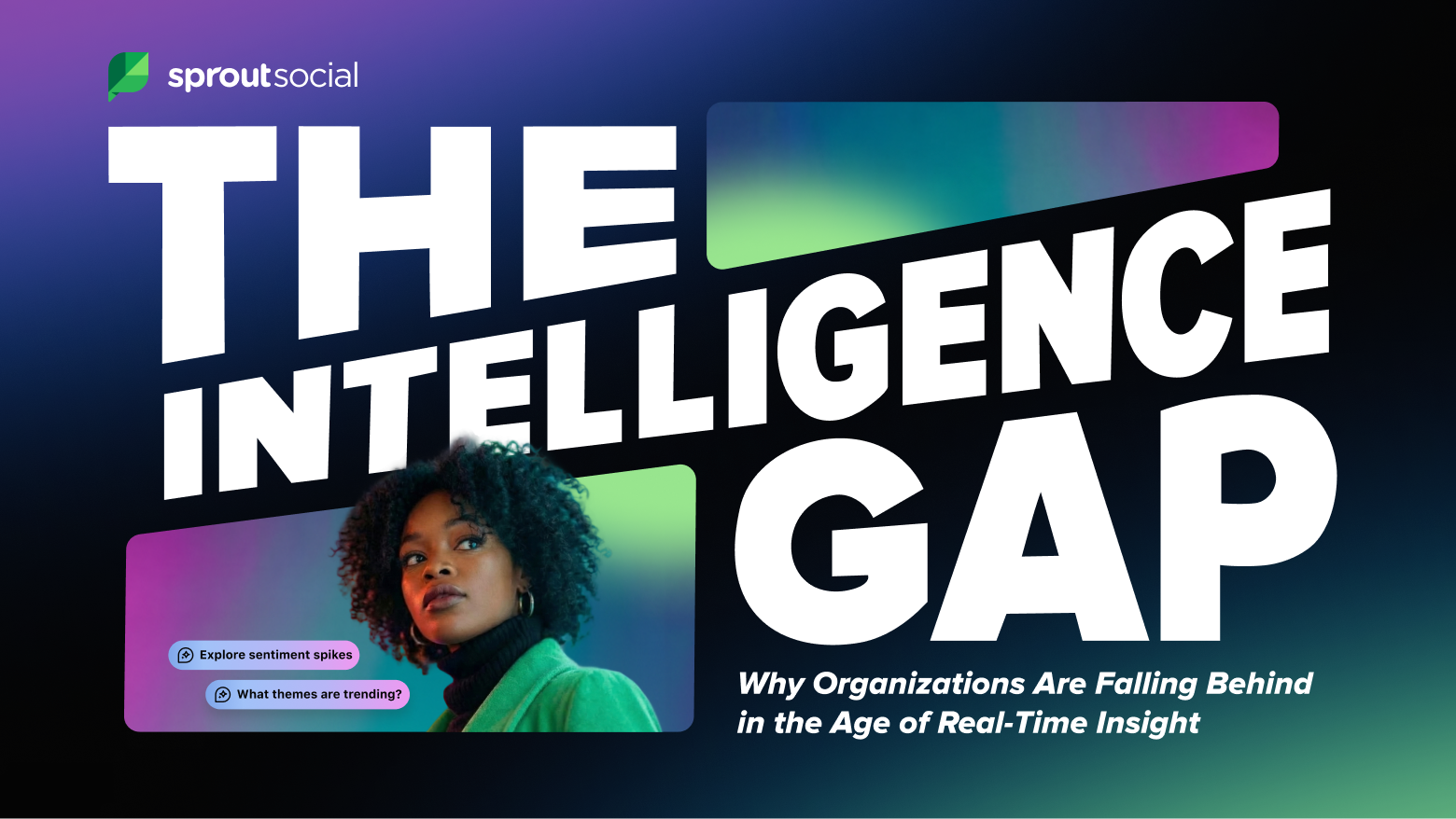
Editor’s Picks



- Categories
Facebook Shops strategy: How to drive more social sales in 2026
Published on June 8, 2026 Reading time 8 minutes - Categories
How to measure and communicate the value of social media
Published on May 29, 2026 Reading time 9 minutes - Reimagine Social Media for Business GrowthTry Sprout for free
- Categories
24 content marketing tools to optimize your strategy and ROI
Published on May 28, 2026 Reading time 6 minutes - Categories
The economy is reshaping influencer storytelling
Published on May 28, 2026 Reading time 5 minutes - Categories
Snapchat statistics, revenue and usage data for 2026
Published on May 28, 2026 Reading time 10 minutes - Published on May 28, 2026 Reading time 8 minutesCategories
How to master your brand’s TikTok link in bio
Published on May 28, 2026 Reading time 8 minutes - Published on May 27, 2026 Reading time 9 minutesCategories
How to start selling with YouTube Shopping and turn viewers into customers
Published on May 27, 2026 Reading time 9 minutes - Published on May 26, 2026 Reading time 7 minutesCategories
Why brands need human-generated content ecosystems
Published on May 26, 2026 Reading time 7 minutes - Published on May 21, 2026 Reading time 9 minutesCategories
A complete guide to social media content batching in 2026
Published on May 21, 2026 Reading time 9 minutes


















Topic Hubs
- AI Marketing
- AI in Social Media
- Best Times to Post on Social Media
- Business Intelligence
- Competitive Analysis
- Crisis Communications
- Customer Care
- Employee Advocacy
- Facebook Analytics
- Facebook Marketing
- Hashtags
- Influencer Marketing
- Instagram Analytics Tools
- Instagram Marketing
- LinkedIn Marketing
- Reputation Management
- Sentiment Analysis
- Social Media Advertising
- Social Media Analytics
- Social Media Audit
- Social Media Content
- Social Media Customer Service
- Social Media Engagement
- Social Media Listening
- Social Media Management
- Social Media Management Packages for Small Business
- Social Media Marketing
- Social Media Planning
- Social Media ROI
- Social Media Reporting
- Social Media Scheduling
- Social Media Search
- Social Media Statistics
- Social Media for Healthcare
- TikTok Analytics
- TikTok Marketing
- UK Influencers
- X (Twitter) Analytics
- X (Twitter) Marketing
- YouTube Marketing

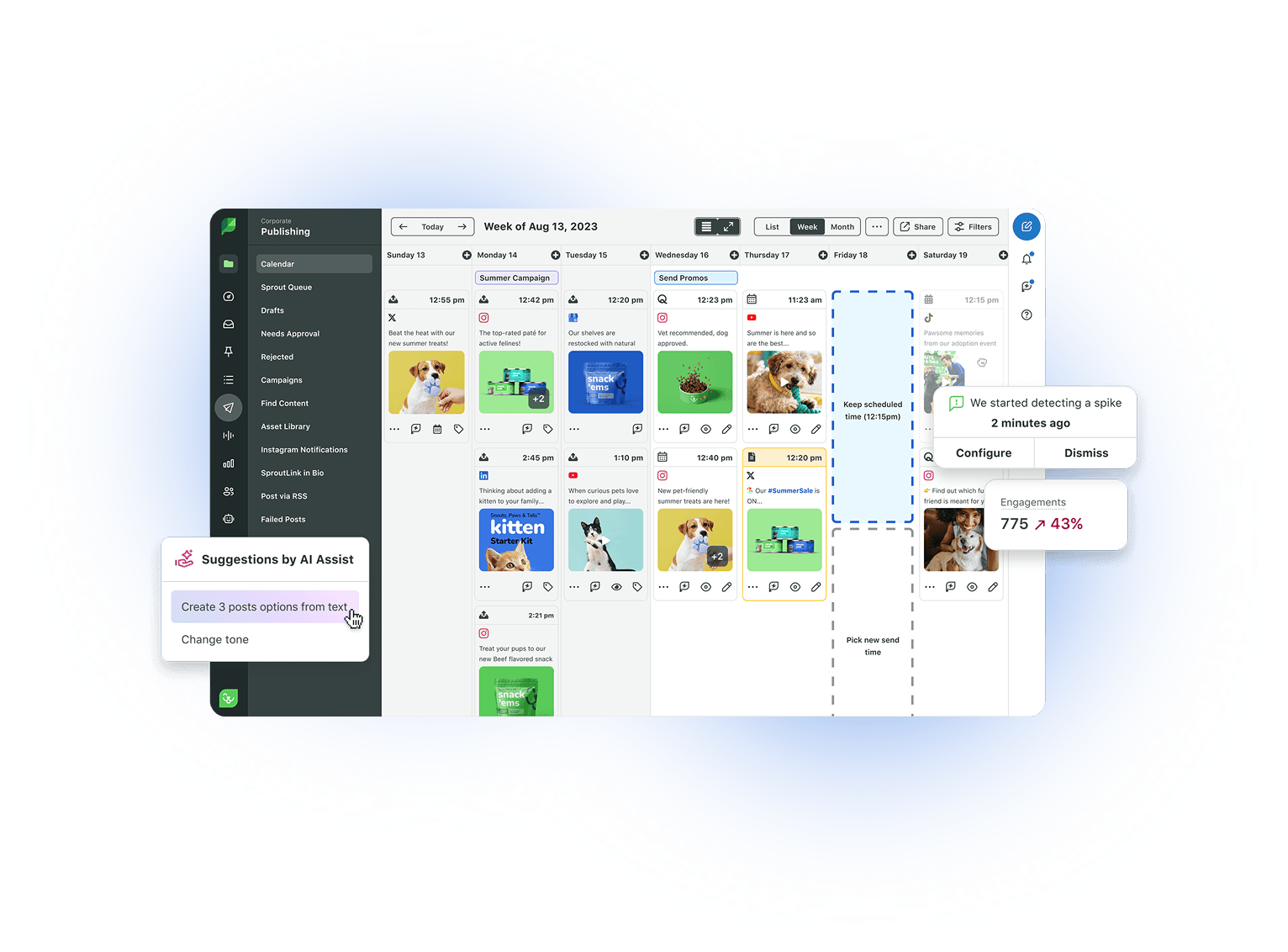
Build and grow stronger relationships on social